What's new
See the latest features, improvements, and fixes — right inside the app.
What this is for
What’s new is the in-app changelog. It lists every recent update to MyHaccpPlan, newest first, so you can see what changed without leaving the app or reading release notes elsewhere.
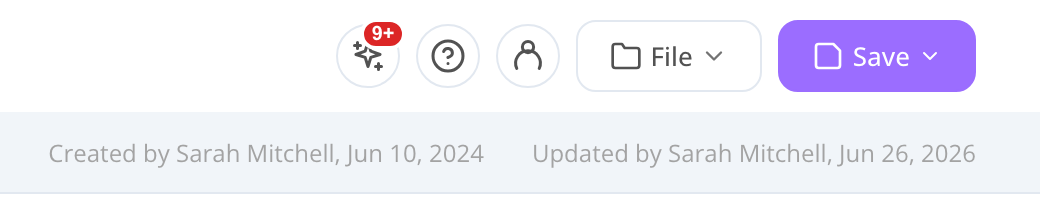
You’ll find the What’s new button — a small sparkle icon — in the top bar. When there are updates you haven’t seen yet, a badge appears on the button. Open it any time to catch up; it’s purely informational and changes nothing in your plan.
If you’re new to MyHaccpPlan, start with Getting started first, then check What’s new to keep up as the app evolves.
Common tasks
How to open What’s new
- Look for the sparkle icon in the app’s top bar.
- Click it. The What’s new panel opens over the app, listing updates newest-first.
- Read through the entries. Close the panel with the ×, by clicking outside it, or by pressing Esc.
Closing the panel marks everything as seen, so the badge clears.
How to understand the badge
A small badge on the sparkle button means there are updates you haven’t read yet. The number is how many releases are new to you (it shows 9+ once there are more than nine).
Once you open and close What’s new, those entries count as seen and the badge disappears — until the next update ships.
How to read an entry
Each update is grouped under a release with a version, a date, and a short headline. Within it, every line is tagged by type so you can tell at a glance what kind of change it is:
- New — a brand-new feature or capability.
- Improved — an existing feature made better.
- Fixed — a bug that’s now resolved.
Entries are written in plain, customer-facing language and appear in your current interface language (English or French).
Screen reference
What’s new button (top bar)
| Element | What it does |
|---|---|
| Sparkle icon | Opens the What’s new panel. |
| Badge | Count of updates you haven’t seen yet (9+ when over nine). Hidden when nothing is new. |
What’s new panel
| Element | What it does |
|---|---|
| Title bar | ”What’s new” heading with a close (×) button. |
| Version + date | Identifies each release, newest first. |
| New badge | Marks a release that’s new to you. |
| Release headline | A short summary line for the release. |
| Type tag | New / Improved / Fixed, per entry. |
| Entry text | The plain-language description of the change. |
FAQs
Where is the What’s new button? It’s the sparkle icon in the app’s top bar. Click it to open the panel.
What does the badge number mean? It’s how many releases you haven’t seen yet. Open and close What’s new and the badge clears. It shows 9+ when there are more than nine.
Do I need to do anything when I see an update? No. What’s new is purely informational. It tells you what changed — opening or closing it never alters your plan.
Why did the badge come back on another computer? What’s-seen is remembered per browser, so the badge tracks separately on each device and browser you use. Opening What’s new on each one clears it there.
Are the entries available in French? Yes. Every entry is bilingual and shows in your current interface language. Switch language from the header (see Getting started) and What’s new follows.
What do the colored tags mean? They label the kind of change: New (a new feature), Improved (an enhancement), or Fixed (a bug fix).