Dashboard
Your post-login hub — continue editing, browse cloud plans, import a file, or start a new plan.
What this is for
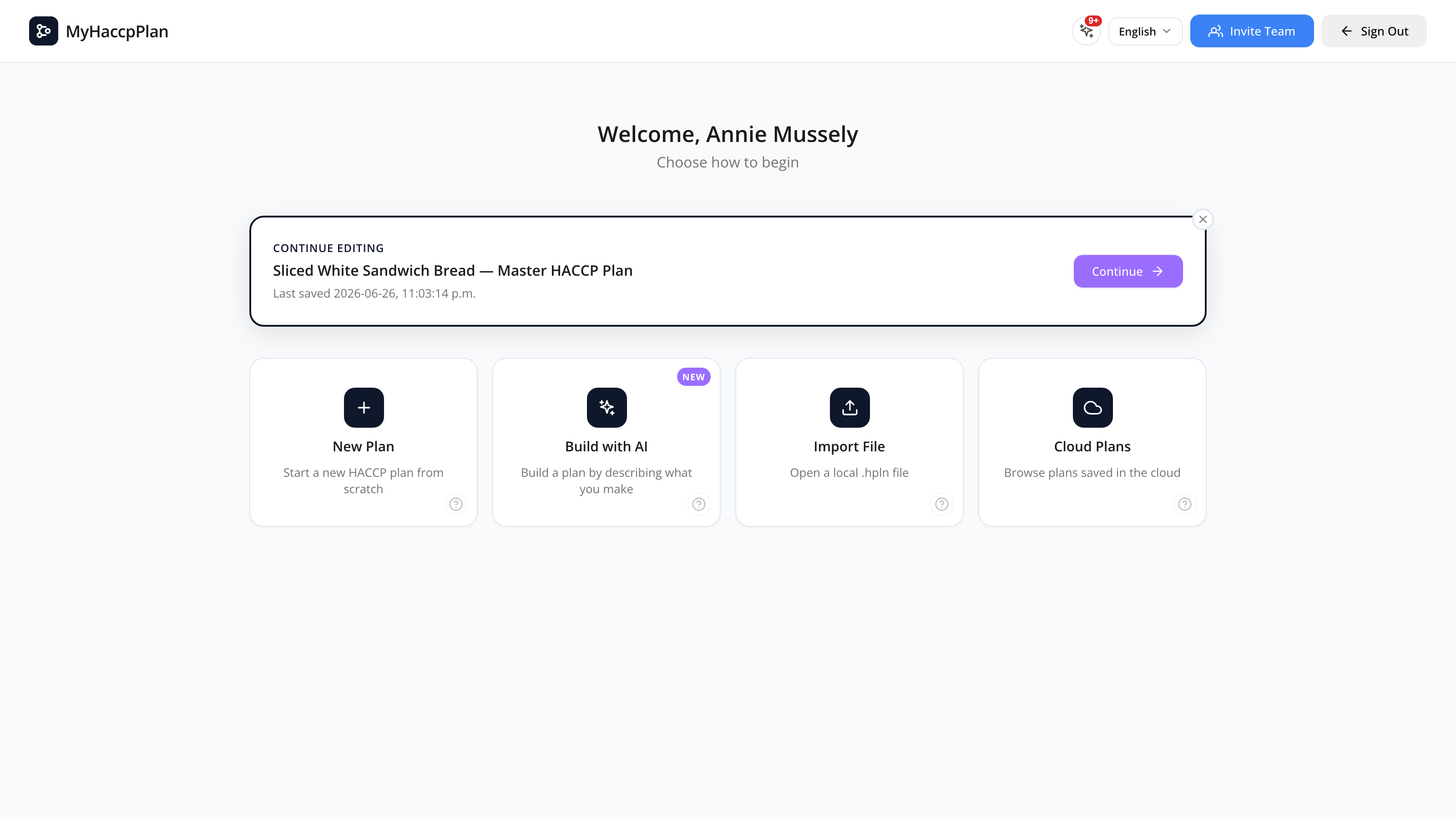
The Dashboard is where you land after signing in. It shows you the things you most likely want to do next:
- Continue editing the plan you were last working on (if your browser has one auto-saved).
- New plan — start a brand-new plan from the Setup wizard.
- Build with AI — describe what you make and let the AI Plan Assistant draft the plan with you.
- Import a file — open a
.hplnor.jsonplan from your computer. - Cloud plans — open a plan saved on the cloud.
The Dashboard also shows your license status as a banner at the top if your subscription is expired, in grace period, or missing.
Common tasks
How to continue editing your last plan
If a saved plan exists in your browser, the Continue editing card at the top shows its name, company, and last-saved time.
- Click Continue editing.
- The plan opens at
/planexactly where you left off.
If you want to discard the saved plan instead, click the dismiss (×) icon and confirm.
How to load a plan from the cloud
- Click the Cloud plans card.
- The cloud browser expands beneath the action grid.
- (Admins only) Pick a customer from the dropdown to see their plans.
- Click any plan to open it.
The plan is downloaded, unpacked (with all images and assets), and you’re taken to /plan. If the plan is locked by another user, you’ll be told who has the lock.
See Cloud Storage for details on saving, versioning, and locking.
How to import a .hpln file
- Click Import file.
- A file picker opens. Choose a
.hplnor.jsonfile. - The file is unpacked and opened.
Use this when you’ve received a plan as an email attachment, or to restore a backup you exported earlier.
How to start a new plan
- Click New plan.
- Any saved draft in your browser is cleared.
- You’re taken to the Setup wizard to define your new plan.
Tip: If you have unsaved work, save it to the cloud or export a
.hplnfile before clicking New plan — it overwrites the draft.
How to invite teammates (admins)
If your role is admin, the dashboard header shows an Invite Team button. Clicking it opens user management with the new-user form already open. See Invite & manage your team for roles, welcome emails, and everything else.
How to log out
In the dashboard header, open the user menu (your name, top-right) and click Logout.
Screen reference
Header
| Element | What it does |
|---|---|
| Brand logo | Returns to the dashboard. |
| Language switcher | Change UI language. |
| Welcome message | Greets you by name. |
| Invite Team (admins) | Opens user management with the new-user form ready to fill. |
| Admin (super admins) | Opens the administration area. |
| Sign Out | Logs you out. |
Continue editing card
Shown only if a saved draft exists in localStorage.
| Element | What it does |
|---|---|
| Plan name + company | Identifies the saved draft. |
| Last saved | Date/time of the last auto-save. |
| Continue editing | Opens the saved plan. |
| × (dismiss) | Discards the saved draft (with confirmation). |
Action cards
| Card | What it does |
|---|---|
| New plan | Goes to the Setup wizard. |
| Build with AI | Opens the AI Plan Assistant to build a plan by chatting. |
| Import file | Opens a file picker for .hpln / .json. |
| Cloud plans | Toggles the cloud browser open/closed below. |
License banner (when applicable)
| Banner | When it appears |
|---|---|
| License expired | Your customer’s license has expired (read-only mode). |
| Grace period | License expired recently; full access for ~30 more days. |
| No license | No license on file. Contact Datahex or your admin. |
Super admins do not see license banners.
Cloud plans panel (when expanded)
| Element | What it does |
|---|---|
| Customer dropdown (admin only) | Filter plans by customer. |
| Plan list | Shows plan name, version, last updated, locked-by indicator. |
| Plan row click | Loads the plan into the editor. |
FAQs
Why don’t I see the Continue editing card? You don’t have a saved draft in this browser. Either you’ve never edited a plan here, you cleared your browser data, or you signed in on a different device. Cloud-saved plans aren’t shown here — open them from the Cloud plans card.
Why don’t I see the Cloud plans card? The card is shown to everyone with cloud access. If the cloud panel itself is empty, you haven’t saved any plans yet — start one and use File → Save to cloud.
Why do I see plans from other companies? You’re an admin or super_admin viewing the plans for a different customer (use the customer dropdown). Regular users only see their own customer’s plans.
Can I open multiple plans at once? Not in the same browser tab — opening a plan replaces the current draft. You can open a second tab and load a different plan there.
What happens if my license expires while I’m editing? The dashboard shows a warning banner. Plan editing is restricted in expired mode (read-only). Contact your admin or Datahex to renew.