Matrix Library
Manage risk matrices — the severity × probability grids used in hazard evaluation.
What this is for
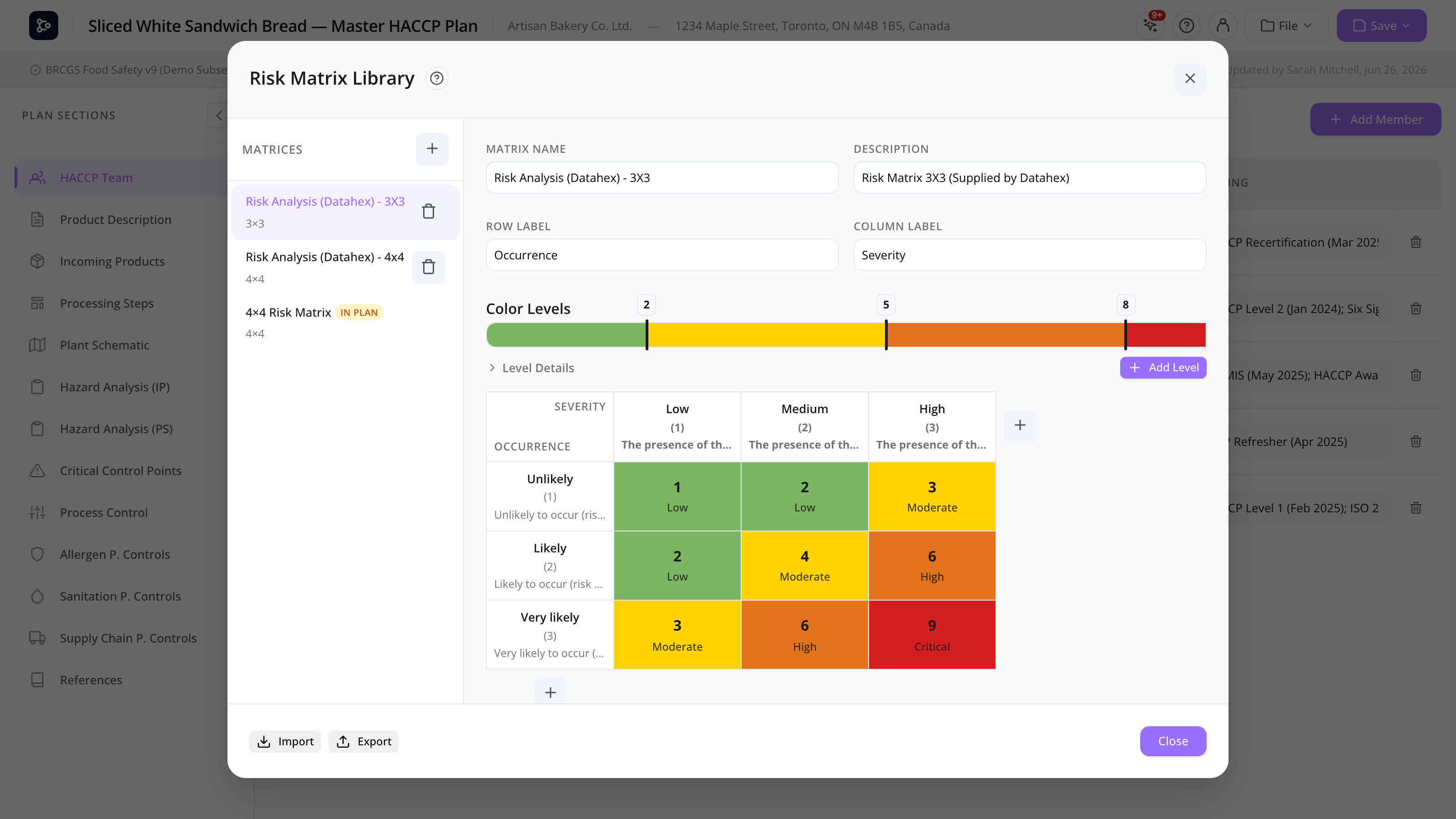
A risk matrix is a grid where each cell represents a combination of severity (impact if the hazard occurs) and probability (likelihood). Each cell has a risk level (Low, Medium, High, etc.) with a colour. Different standards use different matrix shapes — 3×3, 4×4, 5×5, with varying labels and colours.
MyHaccpPlan ships with default matrices and lets you create custom ones. There are two scopes:
- Global matrices — managed by Datahex, available via Marketplace.
- Customer matrices — your organization’s matrices.
When you create a plan, you pick one matrix in Setup. The chosen matrix’s cells appear in the Risk picker when you set a hazard’s risk score.
Common tasks
How to open the Matrix Library
Click the Matrix icon in the header (or File → Matrix Library).
How to download a global matrix to your library
- Click Marketplace in the sidebar.
- Browse global matrices.
- Click Add to my library.
How to create a new matrix
- Click + Add matrix.
- Type a Name and Description.
- Configure the grid:
- Number of rows (severity levels).
- Number of columns (probability levels).
- Levels — the named groupings (Low / Medium / High / etc.) with colours.
How to edit row and column labels
Click any row or column header in the grid → edit inline. Common labels: severity rows from Negligible to Catastrophic, probability columns from Rare to Frequent.
How to assign cells to levels
By default, cells are assigned to a level by their (row × column) score. You can override individual cells:
- Click a cell.
- Pick a different level from the popover.
The cell’s colour updates to match the chosen level.
How to manage levels
In the level editor:
- Click a level to rename or change its colour.
- Click + Add level to add a new one.
- Click × to delete (cells using the deleted level fall back to a default).
How to import / export a .hplnm file
- Import — click Import, pick a
.hplnmfile. - Export — click Export, pick selected or all.
How to use a matrix in a plan
In the Setup wizard step 2, pick a matrix from the dropdown. When you add or evaluate a hazard, the Risk picker uses your matrix.
Screen reference
Sidebar
| Element | Description |
|---|---|
| Matrix list | Your customer matrices. |
| + Add | Create a matrix. |
| Marketplace | Browse global matrices. |
| Import / Export | .hplnm files. |
Detail panel
| Element | Description |
|---|---|
| Name + description | Editable. |
| Grid | Visual severity × probability matrix. Click cells. |
| Level editor | Manage Low/Medium/High etc. with colours. |
| Row / column count | Resize the grid. |
Cell popover
| Element | Description |
|---|---|
| Auto score | The default level for this cell. |
| Override level | Pick a different level. |
| Reset to auto | Clear the override. |
FAQs
What’s the difference between rows and columns? By convention, rows are severity (vertical axis) and columns are probability (horizontal axis). You can label them however your standard requires.
Can I have a non-square matrix (e.g., 3 rows × 5 columns)? Yes — set rows and columns independently.
Why does my hazard’s risk colour not match what I expect? The colour comes from the level assigned to the cell. Check the cell in the matrix and confirm it’s mapped to the level you want. Cell-level overrides take precedence over auto-assignment.
If I change a matrix, does it update existing plans? No — plans embed a snapshot of the matrix at creation. To pull updates, re-link the matrix in File → Edit setup (CONFIRM warning if hazards exist).
Can I delete a level? Yes, but cells using it will need a new assignment (auto or manual override). Be careful — make a copy of the matrix first if it’s used in many plans.
What’s a .hplnm file?
A plain JSON file containing one or more matrices (grid, levels, custom scores). Use it to back up or share between instances.