Standards Library
Manage food safety standards (the rules and items your hazard analysis points to).
What this is for
A food safety standard in MyHaccpPlan is a structured list of items — typically clauses, requirements, or PRP modules — that you can link to during hazard evaluation. When the decision tree concludes that a hazard is controlled by, say, a specific PRP, you pick the standard items that apply. Those items then appear in the printed hazard analysis as the justification.
Each item is identified by a short code (for example, A.1.1.1) plus a rich-text body describing the requirement. Codes are what show up in hazard cards and the hazard-analysis tables; the full text lives behind the code.
The Standards Library is where standards are managed. Two scopes exist:
- Global standards — managed by Datahex super admins. Available to everyone via the Marketplace.
- Customer standards — managed by your admin. Visible only to your customer.
When you create a plan and pick a standard, a copy of it is embedded in the plan. Later edits to the library don’t change existing plans — you have to manually re-import or re-link.
The library lives in the cloud. See Cloud Storage for how saving and version protection work.
Common tasks
How to open the Standards Library
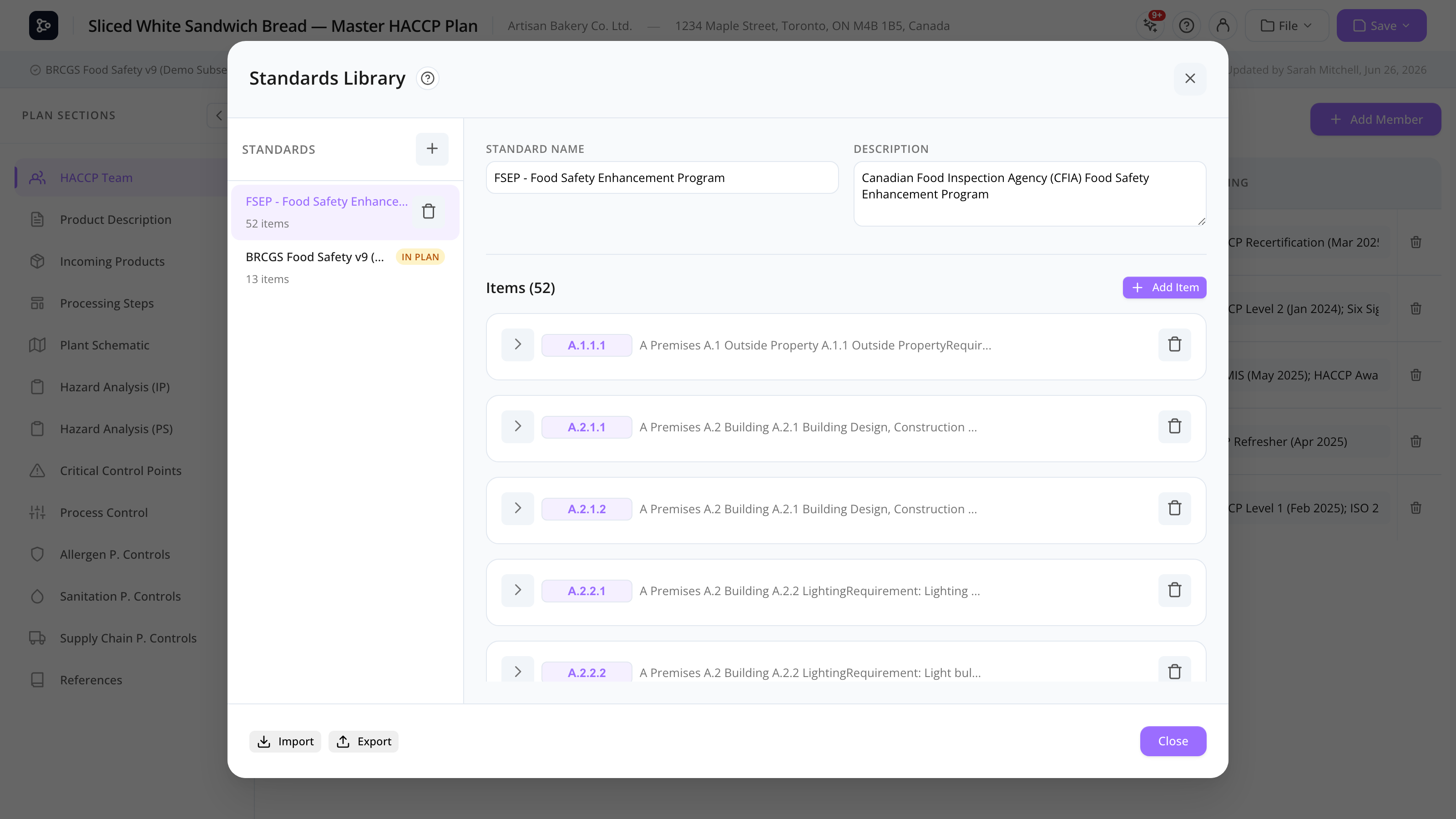
Click the Standards icon in the header (or File → Standards Library). The modal opens with a sidebar of standards and a detail panel.
How to download a global standard to your customer library
- In the library, click Marketplace at the top of the sidebar.
- Browse the global standards.
- Click Add to my library on the one you want.
The standard is copied into your customer library and is now editable. See Marketplace.
How to create a new standard
- In the sidebar header, click the + (Add standard) button.
- A new standard appears in the sidebar and opens in the detail panel.
- Type a Standard Name and Description.
- Add items to it (see below).
How to add items to a standard
- Open the standard in the detail panel.
- Click + Add Item.
- The item appears as a collapsible card. Fill in:
- Code — the item identifier (e.g., 4.7.1).
- Content — rich text describing the requirement (expand the card to edit it).
How to edit or delete an item
- Click the card header (or its chevron) to expand it and edit the content inline in the rich-text editor.
- Edit the code directly in the field on the card header.
- Click the trash icon on the card header to delete the item (with confirmation).
How to read an item’s full text without opening the standard
Anywhere a standard-item code appears — in hazard cards, the Hazard Analysis tables, or the decision-tree picker — hover the code. A tooltip pops up showing the item’s code, name, and full rich-text content, so you don’t have to open the Standards Library to check what a clause says.
This is the same hover tooltip used throughout the app for standard-item codes.
How to import a .hplns standards file
- In the library, click Import at the top.
- Pick a
.hplns(or.json) file from your computer. - The file’s standards are added to your customer library. Standards with a matching ID are updated in place; new ones are appended.
This is useful for porting standards from another instance, or for re-importing a backup.
How to export your standards
Click Export at the top of the library. Choose between:
- Export selected — picks specific standards into one
.hplnsfile. - Export all — exports every standard in your customer library.
How to use a standard in a plan
In the Setup wizard step 2, multi-select one or more standards from the dropdown. The items become available in the hazard analysis decision tree.
Screen reference
Sidebar
| Element | Description |
|---|---|
| Standard list | All your standards (customer-specific). Each shows the name and item count. |
| + (header) | Create a blank standard. |
| Trash | Delete a customer standard (with confirmation). |
| Marketplace | Browse global standards to import. |
| Import | Upload a .hplns / .json file. |
| Export | Download as .hplns. |
Detail panel
| Element | Description |
|---|---|
| Standard Name + Description | Editable text fields. |
| Items (count) | Heading with the number of items. |
| + Add Item | Append a new item. |
| Item card | Collapsible. Header shows the Code field, a content preview, and a trash button. |
| Chevron / header | Click to expand the card and edit the rich-text content. |
FAQs
What’s the difference between a “global” and “customer” standard? Global standards are maintained by Datahex (typically the published versions of common standards: BRC, SQF, FSSC, etc.). Customer standards are private to your organization — usually customizations or additional standards you’ve created. Global standards become customer standards once you copy them via the Marketplace.
What does an item’s “code” mean? It’s the short identifier (like A.1.1.1 or 4.7.1) that the item shows up as in hazard cards and hazard-analysis tables. The full requirement text is the item’s content, which you read by expanding the card — or, anywhere the code appears, by hovering it.
Can I read a clause without opening the library? Yes. Hover any standard-item code in a hazard card, hazard-analysis table, or decision-tree picker, and a tooltip shows the item’s full text. No need to open the Standards Library.
If I edit a standard, does it update plans that already use it? No. Each plan embeds a snapshot of the standard at the time of plan creation. To pull updates, re-link the standard in File → Edit setup (with the CONFIRM warning if hazard data exists).
What happens if a coworker edits the same standard at the same time? The library is saved as a whole document in the cloud. If someone else saved changes after you loaded the library, the app detects the conflict on save: instead of silently overwriting their work, it loads the latest version and warns you to reapply your last change. Nothing is lost — you just redo your most recent edit on top of the current version. See Cloud Storage.
Where do the items show up in a plan? In the Decision tree wizard, after a hazard concludes as PRP/CCP/etc., you pick the standard items that justify the control. Those items are then shown in the Hazard Analysis tables and the printed plan.
Can I have items with images or tables? Yes — the item content is rich text, so you can include images, tables, lists, and formatted text.
What’s a .hplns file?
A plain JSON file containing one or more standards (with all items). Use it to back up, share between instances, or import from a partner.
How do I delete a standard from my library? In the sidebar, click the trash icon on the standard (customer standards only), and confirm. Plans that already use a snapshot of the standard are unaffected.