Print preview & export
Preview your full plan, then download a polished, audit-ready PDF or send it to your printer.
What this is for
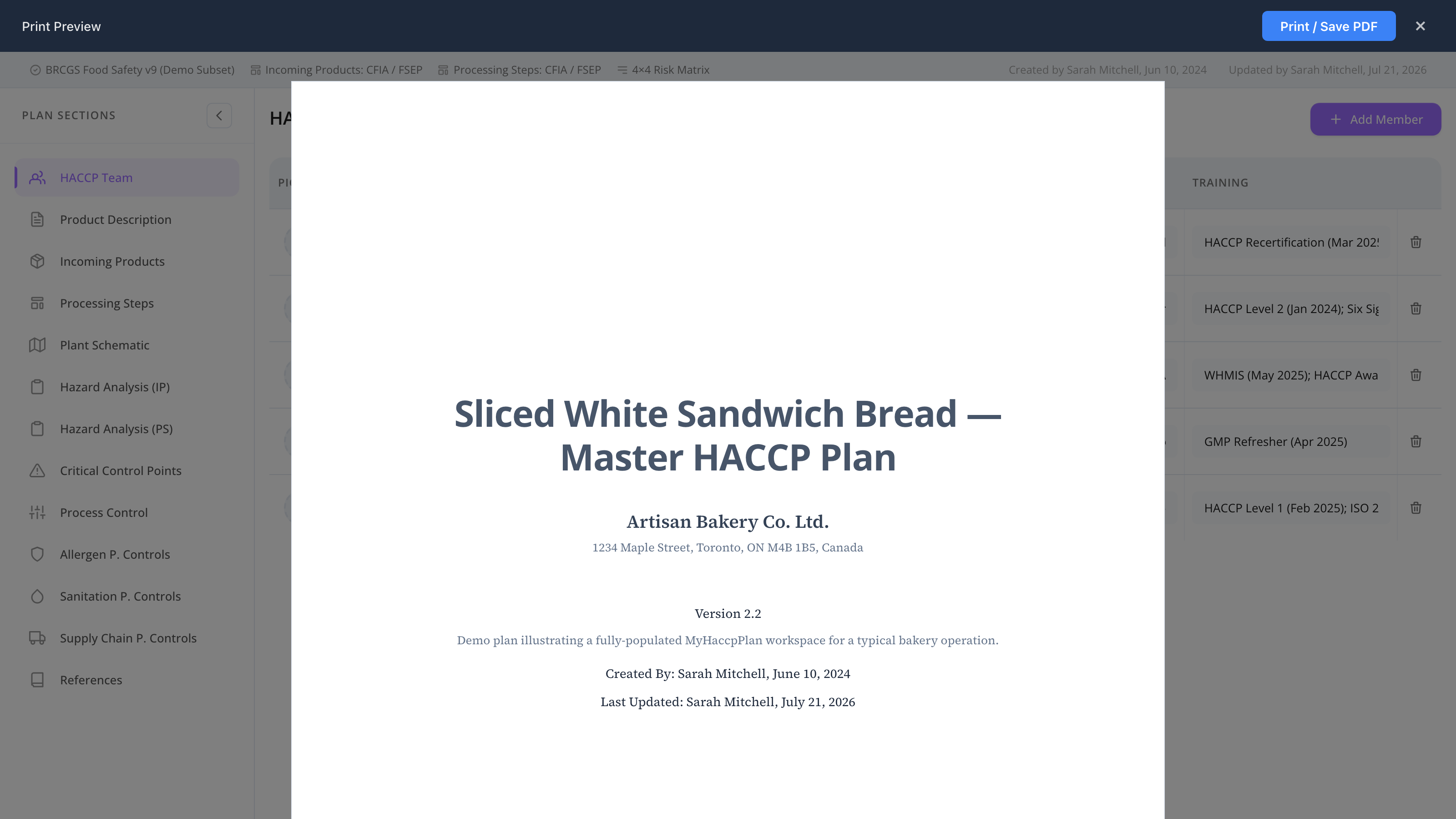
Print preview renders the entire plan as a printable document — cover page, table of contents, every enabled section formatted for print, and an audit trail. Use it to check the plan before printing, sending to an auditor, or downloading a PDF.
The print view re-renders sections in print-optimized layouts:
- Cover page — plan name, company, version, cover image, approval status, audit trail.
- Table of contents — numbered list of every enabled section.
- HACCP team — grid view of all members.
- Product description — all questions and answers.
- Incoming products — 3-column category box grid.
- Flow diagram — SVG-rendered flow with edges, nodes, waypoints, and labels. When a plan has more than one diagram, every chosen diagram prints on its own page(s).
- Hazard analysis (incoming + processing) — full hazard tables with control detail.
- CCP / PC grids — wide tables with all custom columns.
- Control sections (allergen, sanitation, supply chain) — rich text rendered.
- Plant schematic — one page per tab, with cross-contamination zones drawn on the diagram and each zone’s notes listed beneath it. Flow-line styles, thickness, and endpoint markers print exactly as drawn.
- References — list of links.
The flow diagram, hazard analysis, CCP, and PC sections all aggregate across every diagram in the plan, so nothing on an inactive tab is left out.
Common tasks
How to open print preview
From inside a plan, click File → Print Preview. The preview opens as a full-screen overlay over the editor. Press Esc or click the × to close it.
How to download a PDF
Click Print / Save PDF in the top bar to open the Print Options dialog, then click Download PDF. The PDF is generated on the server from the exact print layout, so it is professional and audit-ready:
- a branded footer on every page — company name, created/printed dates, Page X of Y, and a “Powered by MyHaccpPlan.com” line;
- searchable, selectable text (not a flat image);
- the Source Serif 4 typeface for a clean, professional look.
The file is named after the plan (Company - Plan name - V{version}.pdf).
How to print to paper
Download the PDF (above) and print it from your PDF viewer. The downloaded PDF already carries the page footer and correct page orientation, so it prints cleanly without relying on browser print settings.
How to set page orientation
In Print Options, choose Portrait (the default) or Landscape. Text sections read best in portrait. Regardless of this setting, the dense hazard analysis, CCP, and PC tables auto-rotate to landscape so all their columns fit on the page.
How to choose which diagrams to print
When a plan has more than one flow diagram, Print Options shows a Diagrams to include checklist (with Select all / Select none). Each box shows the diagram name and its step count. Every chosen diagram prints on its own page(s), and the hazard analysis, CCP, and PC sections reflect your selection. By default all diagrams are included.
How to add page breaks between items
In Print Options, the Page Breaks toggles let you start each incoming product, or each processing step, on a fresh page — useful when each item needs its own sheet for review.
How to include attached PDFs (annexes)
If your product description questions have PDF attachments, Print Options offers an Annexes option to include them, plus a Download annexes PDF button that bundles the attachments into a single PDF.
How to choose what sections are included
The print view always shows every enabled section (those ticked in the Setup wizard section selection). To hide a section from the printed output, disable it in File → Edit setup. Re-enabling it later is non-destructive — the data is kept.
Screen reference
Top bar
| Control | What it does |
|---|---|
| Print / Save PDF | Opens the Print Options dialog. |
| × (close) | Closes the preview and returns to the editor (or press Esc). |
Print Options dialog
| Control | What it does |
|---|---|
| Orientation | Portrait (default) or Landscape for normal-width sections. |
| Page Breaks | Start each incoming product / each processing step on a new page. |
| Diagrams to include | Checklist of every non-empty flow diagram (only shown when the plan has more than one), with Select all / Select none. |
| Annexes | Include attached PDFs, with a Download annexes PDF button. |
| Download PDF | Generates and downloads the branded, searchable PDF. |
Cover page
| Element | Description |
|---|---|
| Cover image | From the plan metadata, optional. |
| Plan name + version | Large title. |
| Company name | Subheading. |
| Audit trail | Created by / date, updated by / date, approved by / date (if approved). |
Hazard analysis tables
| Element | Description |
|---|---|
| Group header | One per source (incoming product or processing step). Processing step headers begin with the step number (e.g. #4 Cooking). |
| Hazard order | Hazards are listed in a consistent B → C → P → M → R → Q order, alphabetical by name within each type. |
| Hazard cell | Hazard name, with pathogens and examples folded onto a sub-line beneath it (no separate columns). |
| Risk | Risk level plus the severity × probability score, colour-coded from the risk matrix. |
| Decision-tree columns | One column per active decision-tree question, with a legend table above. |
| Controlled at | Full evaluation detail: control type pills (PRP / CCP / PC / PCP), selected standard items, linked PCP controls, linked processing steps, and the justification text. |
Section pages
Each section is rendered with its own header, contents, and consistent typography. Tables wrap with repeating headers if they span multiple pages.
FAQs
What’s the difference between Print and Download PDF? Download PDF is the recommended path. The PDF is built on the server from the exact print layout, with a branded footer (company, dates, Page X of Y, “Powered by MyHaccpPlan.com”) stamped on every page, searchable text, and the Source Serif 4 typeface. To print on paper, download the PDF and print it from your PDF viewer — it already carries the footer and the right page orientation.
Why did my table come out sideways / in landscape? The hazard analysis, CCP, and PC tables are wide, so they auto-rotate to landscape to fit all their columns on the page — even when the rest of the plan prints in portrait. This is intentional and keeps the columns from being cut off.
How do I choose which diagrams to print? If your plan has more than one flow diagram, open Print / Save PDF and use the Diagrams to include checklist (with Select all / Select none). Each diagram you keep prints on its own page(s), and the hazard analysis, CCP, and PC sections follow your selection. With a single diagram there’s nothing to choose, so the checklist doesn’t appear.
Why does my flow diagram look different in the print view? It shouldn’t — the print view re-renders the diagram as static SVG, but it preserves node positions, node sizes, edge waypoints, labels, and styling from the editor. Wide step boxes (say, a receiving step listing many incoming materials) keep their shape instead of being squeezed into a tall, narrow box. If something still looks off, close and reopen the preview to re-render.
Why are pathogens and examples not in their own columns anymore? To keep the dense hazard tables readable, pathogens and examples are folded onto a sub-line under the hazard name instead of taking separate columns. All the detail is still there — just more compact.
Can I export to Word or Excel?
- Word: not directly; download the PDF and use a PDF-to-Word tool, or copy-paste sections.
- Excel: use File → Export → Excel for the structured tables (hazard analysis, CCP, PC). Other sections aren’t tabular and don’t export well to Excel.
The print preview is slow to load. Plans with many embedded images or a complex flow diagram can take several seconds to render. Be patient. If your plan has hundreds of products, it may take 10–20 seconds to render fully.
A section is missing from the print preview. Either it’s disabled in Setup, or it has no content. Re-enable it in File → Edit setup and add at least one item.
Are the colours preserved in the PDF? Yes — colours from the risk matrix, hazard pills, and flow diagram are preserved in the downloaded PDF.
Does the PDF have page numbers? Yes. The branded footer on every page includes Page X of Y along with the company name and the created/printed dates, across both portrait and landscape pages.