Cloud Storage
Save plans to the cloud, share them across devices, manage versions, and prevent concurrent edits.
What this is for
Cloud Storage is how MyHaccpPlan keeps your plans available across devices, with full version history and protection against simultaneous edits by two users. Plans are stored on secure cloud storage on a per-customer basis: regular users see only their own customer’s plans, admins can switch between customers.
Three things happen automatically when you save a plan to the cloud:
- Versioning — every save creates a snapshot you can restore later.
- Locking — the plan is locked to your session, preventing another user from saving over your work while you edit.
- Asset packaging — images embedded in the plan (cover, allergen sections, etc.) are bundled into a
.hplnZIP and uploaded together.
On top of that, MyHaccpPlan protects you from accidentally overwriting a colleague’s work:
- Conflict protection — if someone else saves the plan after you opened it, your save is stopped and you’re shown the latest cloud version instead of silently overwriting their changes.
- Automatic retries — brief storage hiccups are retried for you; a momentary glitch doesn’t fail your save. And retrying a save after a dropped connection no longer shows a false “modified by someone else” conflict.
- Sync status banner — when the cloud copy is newer than what you have open, a banner warns you before you save over it.
- Auto-save failure detection — if your browser’s storage fills up so the local auto-save can no longer keep up, the app warns you to export or save to the cloud right away.
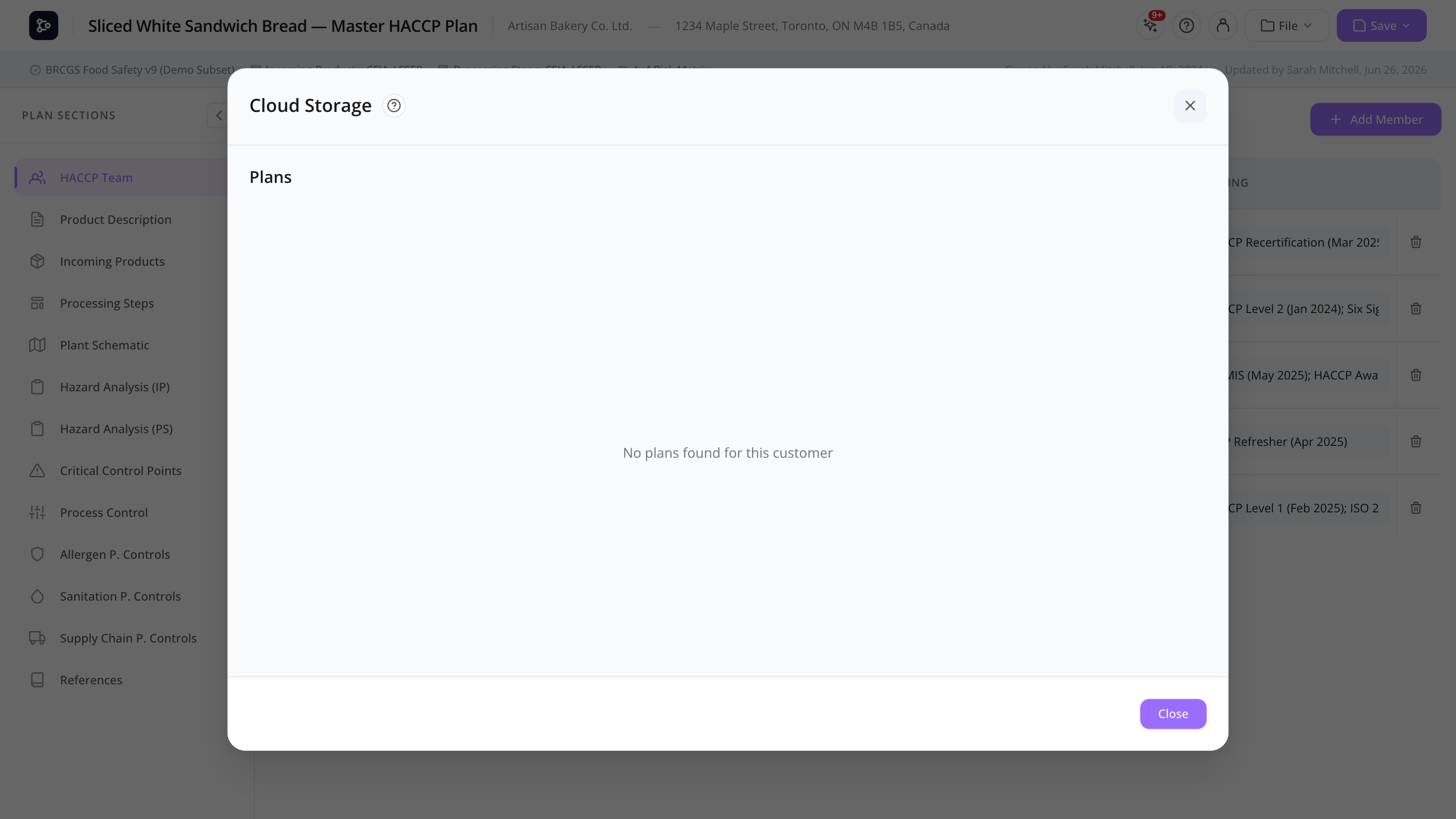
The cloud browser is reachable from the Dashboard, the File menu, and the cloud icon in the header.
Common tasks
How to save a plan to the cloud
- With a plan open, click File → Save to cloud (or use the cloud icon in the header).
- The save modal opens, pre-filled with the plan name and version.
- Click Save.
The plan is uploaded as a .hpln package. A new version is automatically created (the previous cloud version is preserved in the history).
How to load a plan from the cloud
- From the Dashboard, click Cloud plans, or in-app, File → Open from cloud.
- The plan list appears.
- (Admins) Pick a customer.
- Click a plan to load.
The plan downloads and opens in the editor.
How to view and restore previous versions
- Open the cloud browser.
- Click the History (clock) icon next to a plan.
- The version list appears, with each version’s timestamp and saver.
- Click any version to Preview or Restore.
Restoring brings the chosen version back as the current cloud copy. The previous current version becomes a regular history entry.
How to delete a plan
- In the cloud browser, hover the plan row.
- Click the trash icon.
- Confirm.
The plan and all its versions are permanently deleted from the cloud. (Local copies in browsers are not deleted.)
Warning: Deletion is permanent. If in doubt, export a
.hplncopy first, or contact Datahex support about archiving instead.
How to handle plan locks
When you open a plan from the cloud, MyHaccpPlan tries to acquire an editing lock. While you hold it, the server blocks other users from saving over the plan. The lock is renewed automatically in the background while you keep the plan open, and is released when you close the plan or the tab.
If the plan is already being edited by someone else when you try to open it:
- A banner shows who is editing the plan.
- You can wait for them to finish (the lock is released when they close the plan, and it auto-expires after a period of inactivity as a fallback).
- If the banner says the lock has expired, a Take Over button lets you grab editing rights and open the plan.
If a lock looks genuinely stuck, contact Datahex support to have it released.
What happens when two people edit the same plan
This is handled for you — you should never silently lose work:
- The first person to open the plan holds the editing lock; the other person is told the plan is being edited and is blocked from saving over it.
- If a colleague manages to save the plan after you opened it (for example, the lock had lapsed), the next time you save you’ll see a Cloud version conflict notice telling you who saved it and when.
- From that notice you can Load cloud version (replaces what you have with their latest copy), Cancel (keep editing and decide later), or Overwrite anyway (push your copy over theirs).
- Overwrite is never destructive: before your copy replaces theirs, the replaced version is automatically saved as a backup in the version history, so it can always be restored.
How to respond to the sync warning banner
When you reopen a plan, MyHaccpPlan compares your local copy with the cloud copy:
- “Cloud has newer changes” — the cloud version is newer than what you have. Click Load cloud version to pull it down before you keep editing, otherwise your next save may overwrite their changes.
- “Local changes not on cloud” — your local copy is ahead of the cloud. Click Push to cloud to upload it so it’s available on your other devices.
What to do if you’re warned that saving is blocked
Two situations can block or warn you when saving:
- Editing lock can’t be renewed — if the app can’t keep your lock alive (you lost connection for a while, or someone took over an expired lock), it warns you that another user may take over. Save your work to a file with File → Export to be safe, then reload the plan from the cloud.
- Auto-save is failing — storage full — if your browser’s local storage is full, the every-30-seconds local auto-save stops working and you’ll see a warning. Export the plan to a file or save it to the cloud immediately, then clear unused images to free up space (see the FAQ on slow saves).
Screen reference
Cloud browser
| Element | Description |
|---|---|
| Customer dropdown | Admins only — pick which customer’s plans to show. |
| Plan list | Each row: plan name, version, last update, status icons (locked, signed). |
| Save to cloud | Available when a plan is open. |
| History icon | Per-plan; opens version list. |
| Trash icon | Per-plan; permanent delete. |
Save modal
| Field | Description |
|---|---|
| Plan name | Pre-filled from the plan metadata. |
| Version | Pre-filled, editable. |
| Save | Uploads. |
| Cancel | Closes without saving. |
Version history
| Element | Description |
|---|---|
| Timestamp | When the version was saved. |
| Saver | Who saved it (their email). |
| Size | Approximate .hpln size. |
| Preview | Loads the version into a temporary view (no overwrite). |
| Restore | Brings the version back as the current cloud copy. |
Lock banner
Shown if the plan is being edited by another user. Includes their name. If the lock has expired, a Take Over button appears.
Sync status banner
| State | Meaning | Action |
|---|---|---|
| Cloud has newer changes | The cloud copy is newer than your local copy. | Load cloud version |
| Local changes not on cloud | Your local copy is newer than the cloud. | Push to cloud |
Conflict notice
| Element | Description |
|---|---|
| Title | ”Cloud version conflict”. |
| Detail | When the cloud version was saved, and by whom. |
| Load cloud version | Replaces your copy with the latest cloud version. |
| Cancel | Closes the notice; keep editing. |
| Overwrite anyway | Pushes your copy over the cloud version — the replaced version is first backed up to the version history. |
FAQs
Where are my plans actually stored? On Datahex’s secure cloud storage, encrypted at rest. Each customer has its own folder; only that customer’s users (and Datahex super admins) can read or write.
How many versions are kept? All of them, by default. Datahex super admins may apply retention policies on very large customers — ask your account manager.
What happens if two people edit the same plan at the same time? The first person to open the plan holds the editing lock, and the second person is told the plan is being edited and is blocked from saving over it. HACCP plans need a single authoritative editor at a time, so this is intentional. If a save ever does collide (for example, an expired lock was taken over), the person saving second gets a clear Cloud version conflict notice and chooses whether to load the latest version or overwrite — nothing is silently lost.
Why am I blocked from saving? Either another user is currently editing the plan and holds the lock, or your own editing lock couldn’t be renewed (you were offline for a while, or someone took over an expired lock). Save your work with File → Export, reload the plan from the cloud, and try again.
What does the sync warning banner mean? It compares your local copy with the cloud copy when you reopen a plan. “Cloud has newer changes” means a newer version exists in the cloud — load it before editing. “Local changes not on cloud” means your copy is ahead — push it to the cloud so it’s available elsewhere.
The app says auto-save is failing because storage is full. Your browser’s local storage filled up (usually from plans with many large images), so the every-30-seconds local auto-save can’t keep up. Export the plan to a file or save it to the cloud right away to avoid losing work, then trim image sizes to free space.
The lock seems stuck after I closed my browser. Closing the plan or tab releases the lock immediately — colleagues no longer have to wait for it to time out. Locks also auto-expire after a period of inactivity as a fallback (e.g., after a crash). If a lock still shows as held, contact Datahex support to have it released. If the banner shows the lock as expired, use Take Over to claim it.
My connection dropped in the middle of a save — is my plan safe? Yes. Brief storage hiccups are retried automatically, and if the save truly failed you can simply save again — a retry after a dropped connection no longer triggers a false “modified by someone else” conflict. When in doubt, check the version history: every successful save is listed there.
If I click “Overwrite anyway”, is my colleague’s version gone? No. Before your copy replaces theirs, their version is automatically saved into the version history. Open History on the plan to preview or restore it.
Why does saving sometimes take a while?
Plans with many embedded images (allergen sections, plant schematic backgrounds) can grow large. The cloud upload sends the full .hpln package each time. Trim image sizes and clear unused assets to speed it up.
Can I export a plan from the cloud as a .hpln file?
Yes — load it, then File → Export to download it as .hpln.
Can I share a plan with someone outside my customer organization? Use the Signature & Review flow to create a public read-only share link. For full editing access, that person would need an account on your customer’s organization.