Setup wizard
Create a new plan in four guided steps: plan info, composition, audit trail, and sections.
What this is for
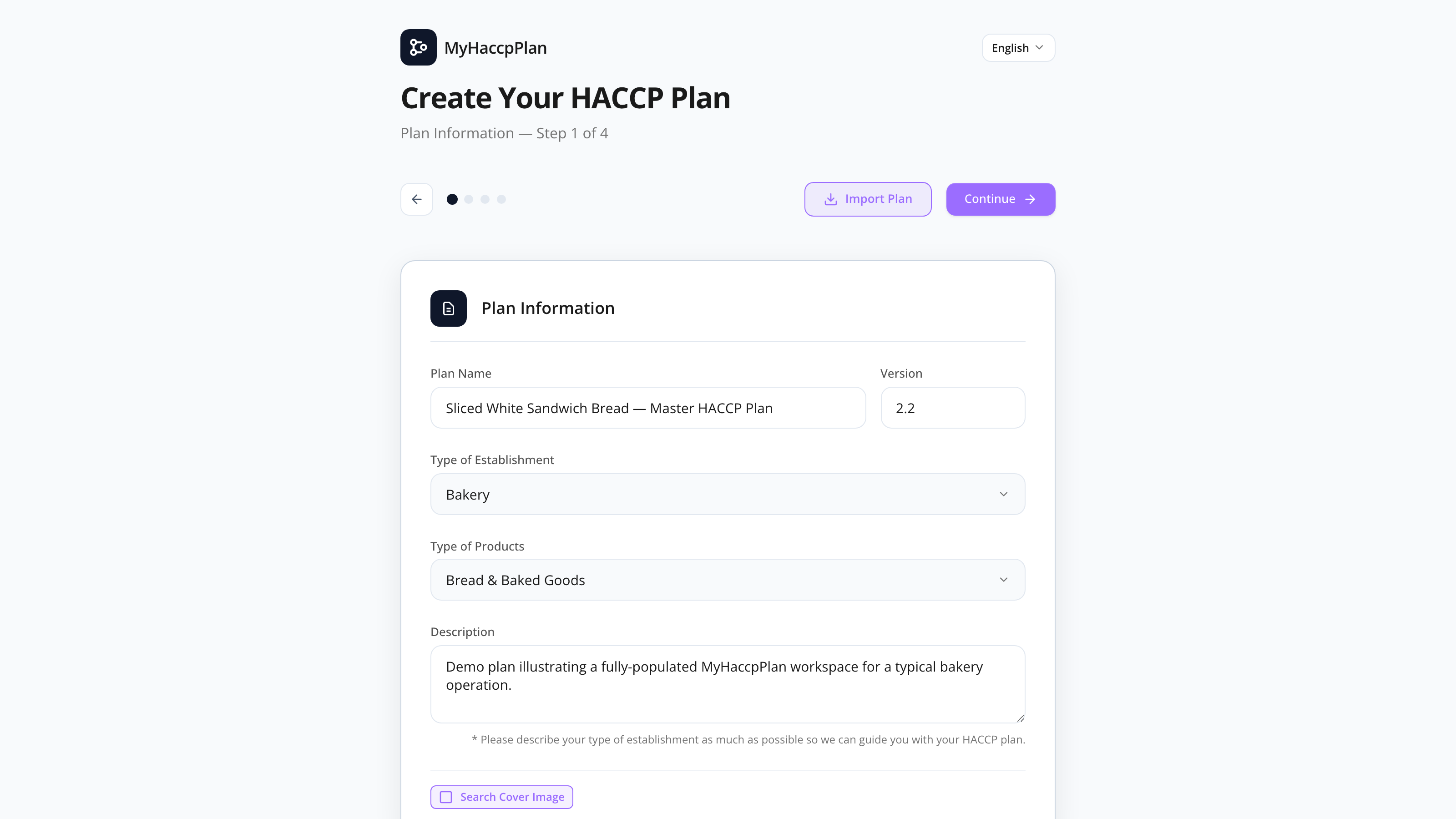
The Setup wizard is the four-step form that walks you through creating a new HACCP plan. You reach it by clicking New plan on the Dashboard, or any time you start fresh from File → New plan.
The wizard is divided into four steps, each focused on one decision area:
- Plan info — name, description, company, version, cover image.
- Composition — decision trees, food safety standards, and risk matrix.
- Audit trail — who created the plan and when (auto-filled from your account).
- Section selection — which sections this plan should include.
When you click Create plan on the last step, the wizard hands you off to the main editor at /plan with the active section set to the first selected one.
Common tasks
How to create a new plan from scratch
- From the Dashboard, click New plan (or File → New plan while inside a plan).
- Step 1 — Plan info:
- Type a Plan name.
- Type a Description (one or two sentences).
- Type the Company name and Version (e.g.,
1.0). - Optionally add an Address.
- Optionally pick a Cover image — see below.
- Click Next.
- Step 2 — Composition:
- Pick an Incoming Products decision tree.
- Pick a Processing Steps decision tree.
- Select one or more Food safety standards (you can pick more than one).
- Pick a Risk matrix.
- Click Next.
- Step 3 — Audit trail: confirm the auto-filled creator name and date.
- Click Next.
- Step 4 — Section selection: tick the sections to include. By default, all are enabled. Drag rows to reorder them in the sidebar.
- Click Create plan.
You’re taken to /plan with the new plan loaded.
How to pick a cover image
The cover image appears on the print preview cover and in some preview cards.
- In step 1, click Pick a cover image.
- Type a search term (e.g., “bakery”, “meat plant”, “vegetables”).
- The picker queries the Pexels image library and shows results in a grid.
- Click any image to select it.
You can change or remove the cover image any time later from File → Plan info.
How to import an existing plan instead
If you already have a .hpln file, don’t use the wizard — go back to the Dashboard and click Import file. See Dashboard.
How to switch a tree, standard, or matrix later
You can change any of these from the File → Edit setup option, but if hazard data already exists in your plan, you’ll be asked to confirm:
- The system shows a Confirm switch modal listing what data may be affected.
- You must type CONFIRM in capital letters to proceed.
This safeguard prevents accidental destruction of standard items, decision tree answers, or matrix scores that were tied to the old selection.
Screen reference
Step 1 — Plan info
| Field | Required | Description |
|---|---|---|
| Plan name | Yes | Free-form. |
| Description | No | One or two sentences describing the plan. |
| Company name | Yes | Used in headers and exports. |
| Version | Yes | Free-form (e.g., 1.0, Draft 2). |
| Address | No | Free-form. Google Places autocomplete available. |
| Cover image | No | Pexels image search. |
Step 2 — Composition
| Field | Required | Description |
|---|---|---|
| Incoming Products decision tree | Yes | The decision tree used when evaluating incoming-product hazards. |
| Processing Steps decision tree | Yes | The decision tree used when evaluating processing-step hazards. |
| Food safety standards | Yes (≥1) | Multi-select. Items from the chosen standards become available in the hazard wizard. |
| Risk matrix | Yes | The severity × probability matrix used in hazard analysis. |
Step 3 — Audit trail
Auto-filled with the signed-in user’s name and the current timestamp. You can override the name if needed.
Step 4 — Section selection
A sortable list of every section. Tick to include, untick to hide. Drag the handle to reorder. The order shown here is the order in the sidebar.
Buttons
| Button | What it does |
|---|---|
| Back / Next | Navigate between steps. |
| Create plan | Available on step 4. Creates the plan and goes to /plan. |
| Cancel | Closes the wizard without saving. |
FAQs
Do I need to fill in everything before clicking Create plan? No. Required fields (plan name, company, version, decision trees, standards, matrix) must be set, but everything else can be edited later from File → Edit setup.
Can I have a plan without a standard? No — at least one standard is required so that the hazard analysis decision tree can offer standard items as control choices.
Can I have multiple standards? Yes. Pick more than one in step 2. Items from all selected standards are merged in the hazard analysis pickers.
What if my decision tree or standard isn’t in the dropdown? Open it in the relevant library first (Decision Tree Library, Standards Library, Matrix Library) — or download one from the Marketplace. Once it’s in your customer library, it appears in the dropdown.
Why does the wizard ask me to type CONFIRM? You’re switching to a new tree/standard/matrix on a plan that already has hazard data using the old one. Some answers, control items, or scores may not match the new selection and will be reset. Typing CONFIRM ensures you understand.
Can I skip the cover image? Yes. It’s optional; the print cover falls back to a default image if none is set.