Allergen Controls
A rich-text section for documenting your allergen control programs.
What this is for
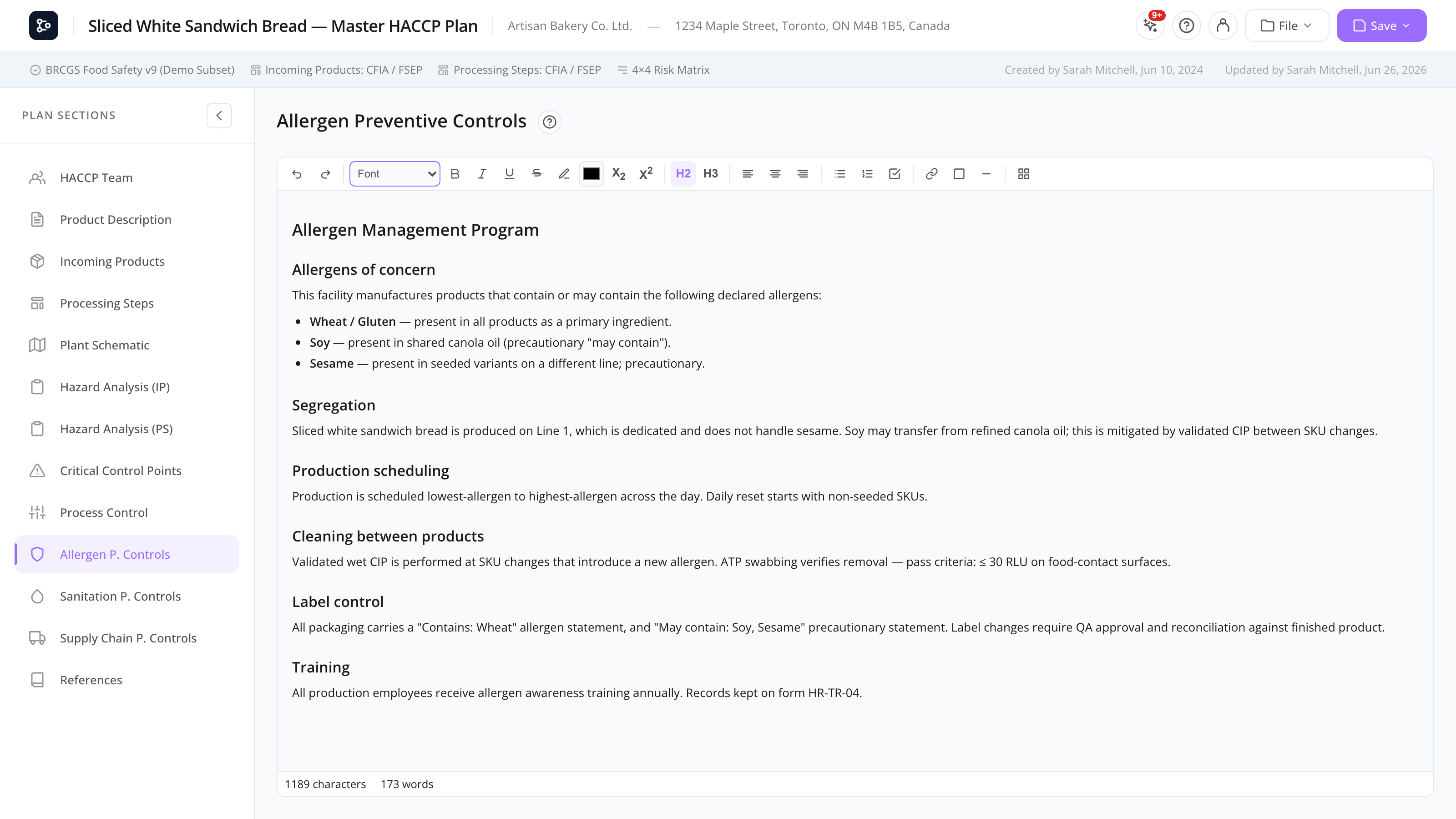
The Allergen Controls section is a rich-text editor where you write your plant’s allergen management program — what allergens are present, segregation procedures, scheduling, label control, cleaning between products, training, etc. The format is open: you can use headings, lists, tables, images, and any other formatting the editor supports.
This section is one of three identical Control sections in MyHaccpPlan, each with its own purpose:
- Allergen Controls — allergen management.
- Sanitation Controls — cleaning and sanitation programs.
- Supply Chain Controls — supplier approval, incoming inspection, traceability.
All three use the same Tiptap-based rich-text editor.
Common tasks
How to start writing
- Open Allergen Controls from the sidebar.
- Click in the editor area and start typing.
- The editor saves as you type (autosave).
How to add headings
In the toolbar, click the Heading dropdown and pick H1 / H2 / H3. Or use Markdown shortcuts: type # then space for H1, ## then space for H2, etc.
How to add a table
- Click the Table icon in the toolbar.
- Pick rows × columns from the popover.
- The table is inserted at the cursor.
- Click any cell to edit. Right-click for cell options (insert/delete row/column, merge cells).
How to add an image
- Click the Image icon, or drag a JPG/PNG into the editor.
- The image is uploaded as a plan asset and embedded.
Images are saved with the plan in the .hpln package and travel with it through cloud and import/export.
How to add a list
Click the bulleted list or numbered list icon in the toolbar, or use the Markdown shortcuts - then space, or 1. then space. Press Tab to indent and create sub-items.
How to format text
Use the toolbar buttons or keyboard shortcuts: Ctrl/Cmd + B for bold, Ctrl/Cmd + I for italic, Ctrl/Cmd + U for underline.
How to insert a horizontal divider
Type --- (three hyphens) on a blank line, then Enter.
Screen reference
Toolbar
| Group | Controls |
|---|---|
| Headings | Paragraph / H1 / H2 / H3 |
| Inline | Bold / Italic / Underline / Strikethrough / Code |
| Lists | Bulleted / Numbered |
| Block | Blockquote / Code block |
| Insert | Table / Image / Horizontal rule |
| Edit | Undo / Redo |
Editor area
The main writing surface. Click anywhere to position the cursor. Selection-aware toolbar buttons enable/disable based on what you’ve selected.
FAQs
Is my content saved automatically? Yes. The plan auto-saves to localStorage every 30 seconds. To save to the cloud, use File → Save.
Can I paste content from Word or Google Docs? Yes. The editor accepts pasted formatting (bold, lists, tables) from most rich-text sources. Some unusual styles may be stripped to keep the output clean.
How big can the section get? There’s no hard limit, but very long sections (thousands of words with many images) slow down auto-save and printing. Split content into headings and consider a separate plan if you need more.
Can I link to other sections of my plan? The editor supports plain hyperlinks. There’s no built-in “link to section” — but you can write a reference like “See Hazard Analysis” and rely on the printed table of contents.
Where do images get stored?
Images are embedded as base64 inside the plan, so they travel with the .hpln file. This keeps plans self-contained but inflates file size — keep image dimensions reasonable.
Will the formatting print correctly? Yes. The print preview renders the rich-text section faithfully — headings, lists, tables, and images all carry over to the printed plan.