Invite & manage your team
Add teammates to your company account, pick their role, and manage their access — usually the very first thing to do after signing in.
What this is for
When your company joins MyHaccpPlan, the account starts with a single admin — probably you. This page covers getting the rest of your team in: creating their accounts, choosing what each person is allowed to do, sending them a welcome email, and later resetting passwords or deactivating accounts.
Everyone you add belongs to your company and only sees your company’s plans. You can’t add users to another organization, and nobody outside your organization can see your data.
Common tasks
How to invite a teammate
- On the Dashboard, click Invite Team (top-right of the header — visible to admins only).
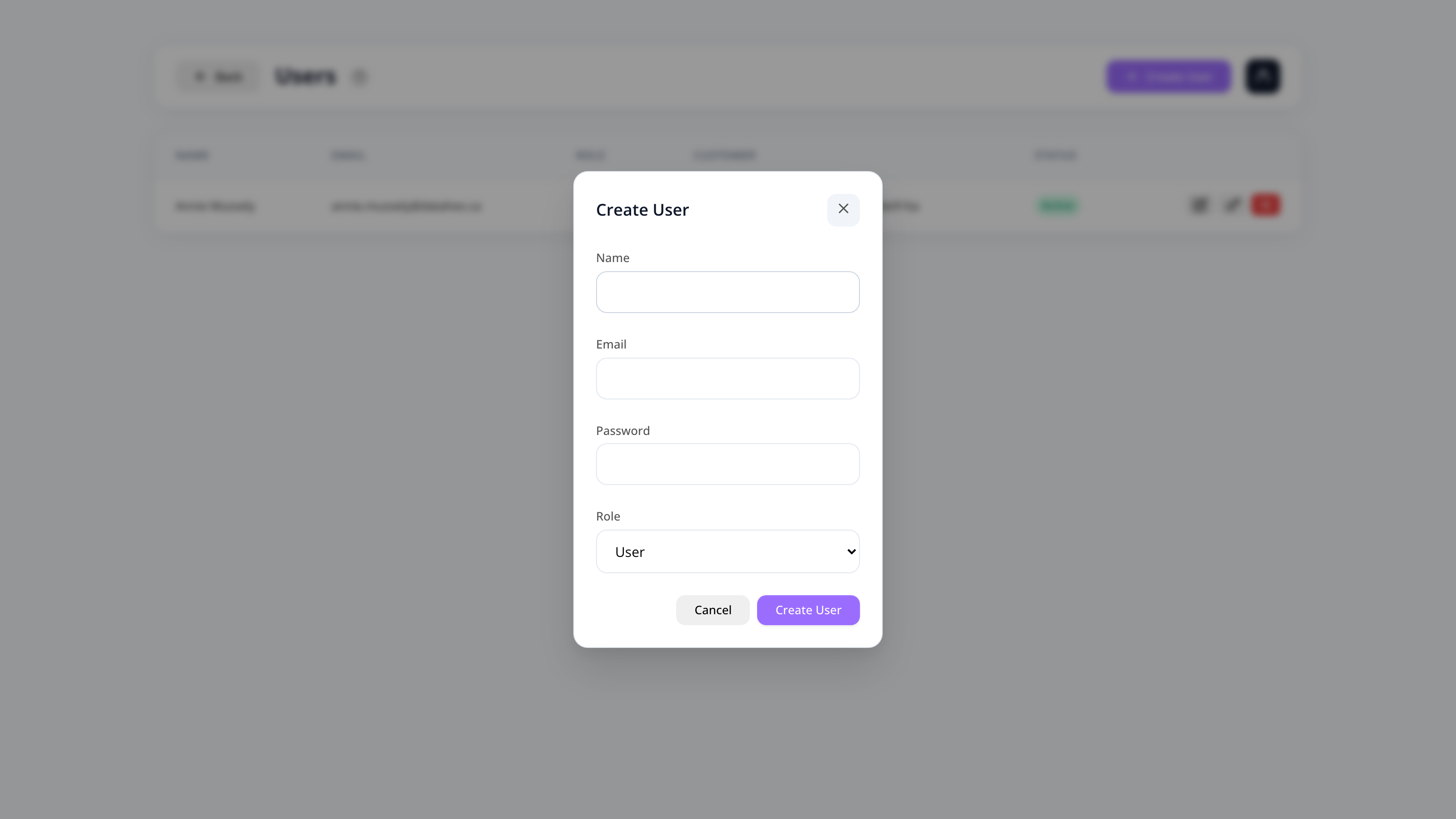
- User management opens with the new-user form already displayed.
- Fill in:
- Name
- Email — this is their login.
- Password — minimum 8 characters. Share it with them securely; they can change it later via Forgot password.
- Role — see below.
- Click Create. The teammate appears in the users table and can sign in right away.
How to send a welcome email
A branded onboarding email that greets the new teammate and points them to the app:
- In the users table, click the pencil (edit) icon on the user.
- At the bottom of the form, pick the email language (English or French).
- Click Send welcome email.
How to choose the right role
| Role | Can do |
|---|---|
| User | Create and edit plans, save to the cloud — the day-to-day role for your food-safety team. |
| Read-only | Open and view plans without changing anything — good for production staff or external reviewers. |
| Admin | Everything a user can, plus manage the team (invite, edit, deactivate users). Consider having a second admin as backup. |
How to reset a teammate’s password
In the users table, click the key icon, type a new password (min 8 characters), and share it with them securely. They can also reset it themselves from the login page via Forgot password.
How to deactivate an account
Click the × icon on the user’s row and confirm. Deactivated users can no longer sign in; the plans they worked on are unaffected. Use this when someone leaves the company.
Where to find user management later
- From the Dashboard: the Invite Team button.
- From inside the plan editor: the user menu (your name, top-right) → Admin.
Screen reference
Users table
| Column | Description |
|---|---|
| Name | The teammate’s display name. |
| Their login address. | |
| Role | Admin / User / Read-only badge. |
| Status | Active or deactivated. |
| Actions | Pencil (edit), key (reset password), × (deactivate). |
New-user form
| Field | Required | Description |
|---|---|---|
| Name | Yes | Display name. |
| Yes | Must be unique across MyHaccpPlan. | |
| Password | Yes | Minimum 8 characters. |
| Role | Yes | User, Read-only, or Admin. |
FAQs
Can I add someone from a different company? No. Users you create always belong to your own company — that’s enforced server-side. A person working with several companies needs an account on each.
Can I create another admin? Yes. Pick the Admin role in the form. Having at least two admins is good practice, so the team isn’t stuck if one is away.
My teammate didn’t receive the welcome email. Ask them to check spam, then resend it: open the user with the pencil icon and click Send welcome email again. The email is only a courtesy — their account works as soon as it’s created, with the password you set.
Can two teammates edit the same plan at the same time? No — plans have an editing lock so only one person edits at a time; others are told who is in the plan. See Cloud Storage.
I don’t see the Invite Team button. Your role isn’t admin. Ask an existing admin of your company to invite users — or to make you an admin.