Decision Tree Library
Manage decision trees used to evaluate hazards (Codex, CFIA, FDA, custom).
What this is for
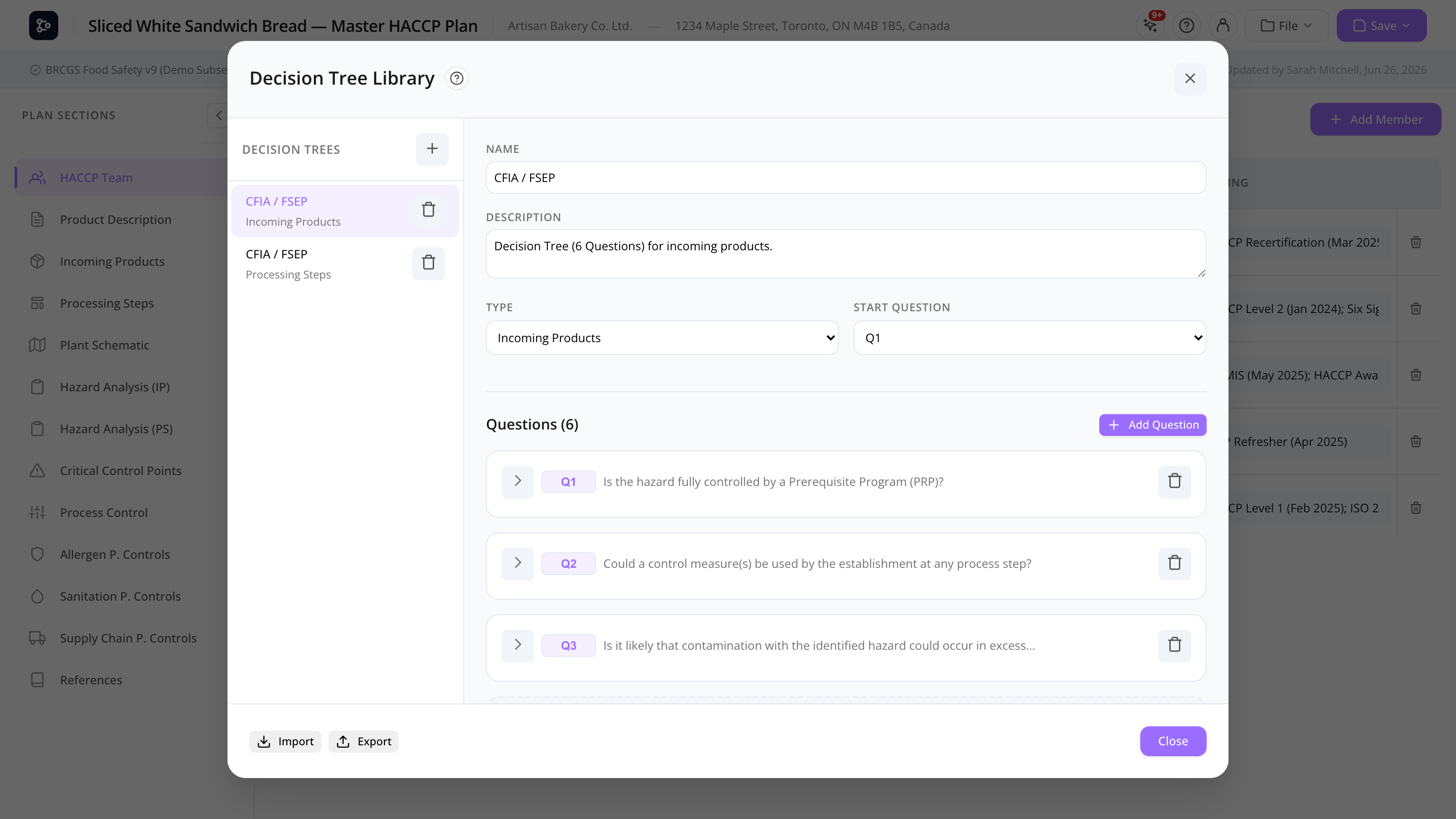
A decision tree is a series of branching questions used during hazard analysis to decide how a hazard is controlled (PRP, CCP, PC, or PCP). Different food safety frameworks use different trees — Codex Alimentarius, CFIA’s FSEP, FDA Preventive Controls, and others.
MyHaccpPlan ships with default trees (CFIA-style for both incoming and processing) and lets you create or import custom ones.
There are two libraries:
- Global library — managed by Datahex super admins, available via the Marketplace.
- Customer library — your organization’s own trees.
Each tree is typed as either Incoming (for product hazards) or Processing (for step hazards). When you create a plan, you pick one of each in the Setup wizard.
Common tasks
How to open the Decision Tree Library
Click the Decision tree icon in the header (or File → Decision Tree Library).
How to download a global tree to your library
- In the library, click Marketplace.
- Browse global trees, filtered by type (Incoming / Processing).
- Click Add to my library.
How to create a new decision tree
- Click + Add tree.
- Choose its Type (Incoming or Processing).
- Type a Name and Description.
- Add questions and answers (see below).
How to add a question
- With the tree open, click + Add question.
- Type the question text.
- Add the Answers (typically Yes/No, but custom answers are supported).
- For each answer, decide what happens next:
- Go to next question — pick another question.
- Conclude — set the control type (PRP, CCP, PC, or PCP) and stop.
The questions form a tree where each answer can branch differently.
How to edit a question
Click the question text or the pencil icon. Edit inline. Drag the handle to reorder questions.
How to set the start question
Mark one question as Start (the first question shown to the user). Branches from other questions converge based on their Next pointers.
How to test the tree
The library has a Test mode where you can walk through the tree as a user would, answering each question and watching the conclusion. Use it to catch dead-ends or wrong-pointer mistakes.
How to import / export a .hplnd file
- Import — click Import at the top, pick a
.hplndfile. The trees are added to your library. - Export — click Export, choose between selected or all.
How to use a tree in a plan
In the Setup wizard step 2, pick an Incoming tree and a Processing tree from the dropdowns. Switching trees on an existing plan with hazard data triggers the Confirm switch modal (you must type CONFIRM).
Screen reference
Sidebar
| Element | Description |
|---|---|
| Tree list | All trees, grouped by type (Incoming / Processing). |
| + Add | Create a tree. |
| Marketplace | Browse global trees. |
| Import / Export | .hplnd files. |
Detail panel
| Element | Description |
|---|---|
| Name + description + type | Editable. |
| Questions list | Each question card shows its text and answers. |
| + Add question | Append. |
| Drag handle | Reorder. |
| Test | Walk through the tree. |
Question card
| Field | Description |
|---|---|
| Text | The question shown during evaluation. |
| Start checkbox | Marks this as the first question. |
| Answers | List of options. Each answer has either a “next question” or a conclusion (PRP/CCP/PC/PCP). |
FAQs
What are the default trees that ship with MyHaccpPlan? A CFIA/FSEP-style tree for incoming products and one for processing steps. They’re maintained by Datahex super admins and updated periodically.
Can I edit a global tree? Not directly. Add it to your customer library via the Marketplace first; the local copy is then fully editable.
Why does my tree have an unreachable question? You added a question but no answer points to it. Use Test mode to find unreachable branches, or look for questions with no incoming “next” pointer.
Can a question have more than two answers? Yes — Yes/No is just the most common case. You can have any number of answers, each pointing to a different question or conclusion.
Why does switching trees prompt me to type CONFIRM? Hazard evaluations carry the answers given on the old tree. Switching may invalidate those answers (the new tree may not have the same questions). The CONFIRM step ensures you understand the risk of resetting some evaluations.
Can I have a tree that mixes Incoming and Processing logic? No — each tree has one type. Use two trees and pick both in setup.
How are trees printed? The selected tree (the one used by your plan) appears as an appendix in the Print preview. The full tree with all questions and conclusions is included.