Product Description
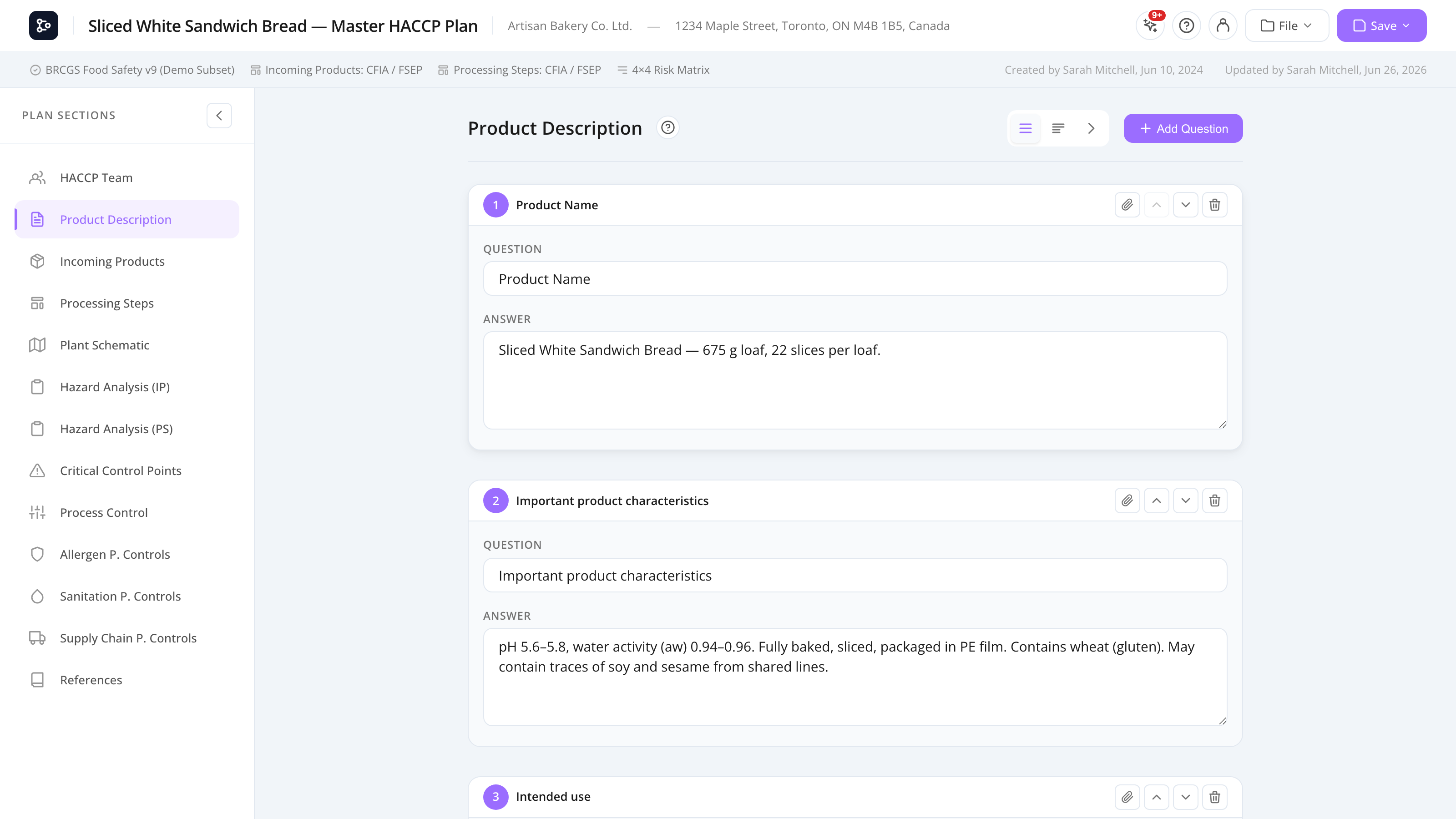
Describe your product through a set of standard questions, in three different view modes.
What this is for
The Product Description section captures the basic facts about the product your HACCP plan covers — its ingredients, intended use, packaging, shelf life, storage, and so on. The data is structured as questions with a free-form answer for each.
By default, eight standard questions are pre-loaded (covering things like Product name and description, Ingredients, Intended use, Storage and distribution, etc.). You can edit, delete, reorder, or add your own questions.
The section has three view modes — pick whichever feels most natural to your team:
- Accordion (default) — all questions stacked vertically, click to expand.
- Wizard — one question at a time with Previous / Next buttons.
- Stacked — all questions and answers shown together, no collapsing.
Common tasks
How to answer a question
- In Accordion view, click the question to expand it. In Wizard view, the question is already on screen. In Stacked view, every answer is visible.
- Click the answer area and start typing.
- Changes save as you type (inline edit).
How to switch view mode
The view toggle at the top of the section has three buttons: Accordion, Wizard, Stacked. Click the one you want. Your choice is per-section, not per-plan, but is remembered between sessions.
How to add a new question
- Click + Add question at the bottom.
- Type the question label.
- Type the answer (or leave blank for now).
The question is appended to the list.
How to edit a question label
- Click the question text (or the pencil icon next to it in some views).
- Edit inline.
- Click outside or press Enter to save.
How to delete a question
- Hover or expand the question.
- Click the trash icon.
- Confirm.
Caution: Deleting a question deletes the answer too. There’s no undo.
How to reorder questions
In Accordion or Stacked view, drag the row handle up or down. In Wizard view, switch to Accordion to reorder.
Screen reference
Toolbar
| Control | What it does |
|---|---|
| Accordion / Wizard / Stacked | Switch view mode. |
| + Add question | Append a new question. |
Accordion view
| Element | Description |
|---|---|
| Question header | Click to expand/collapse. |
| Answer area | Text area shown when expanded. |
| Pencil / trash | Edit label / delete question. |
Wizard view
| Element | Description |
|---|---|
| Question label | The current question. |
| Answer area | Large text area. |
| Progress dots | Shows position (e.g., 3 of 8). |
| ← Previous / Next → | Navigate questions. |
Stacked view
All questions and answers visible at once. Useful for review or printing.
FAQs
What questions are pre-loaded? Eight standard questions covering product name and description, ingredients (composition), characteristics, packaging, intended use and consumer, shelf life, storage and distribution, and labelling instructions. These align with what most food safety standards expect.
Can I save my own custom question set as a template? Not yet — questions are part of the plan. To reuse them, duplicate the plan (cloud → save as) and edit the new copy.
Does the warning triangle on this section mean an answer is missing? Yes — by default, Verify Plan flags any unanswered question on Product Description. Either fill in all answers or delete questions you don’t need.
Is rich text supported? The Product Description answers are plain text. For rich text (bold, lists, images, tables), use the Allergen Controls, Sanitation Controls, or Supply Chain Controls sections instead.
Can I import answers from another plan? Not built-in. The simplest workaround is to duplicate the plan in the cloud browser and edit the duplicate.