Processing Steps
Build one or more production flow diagrams with a visual drag-and-drop editor, then attach hazards to each step.
What this is for
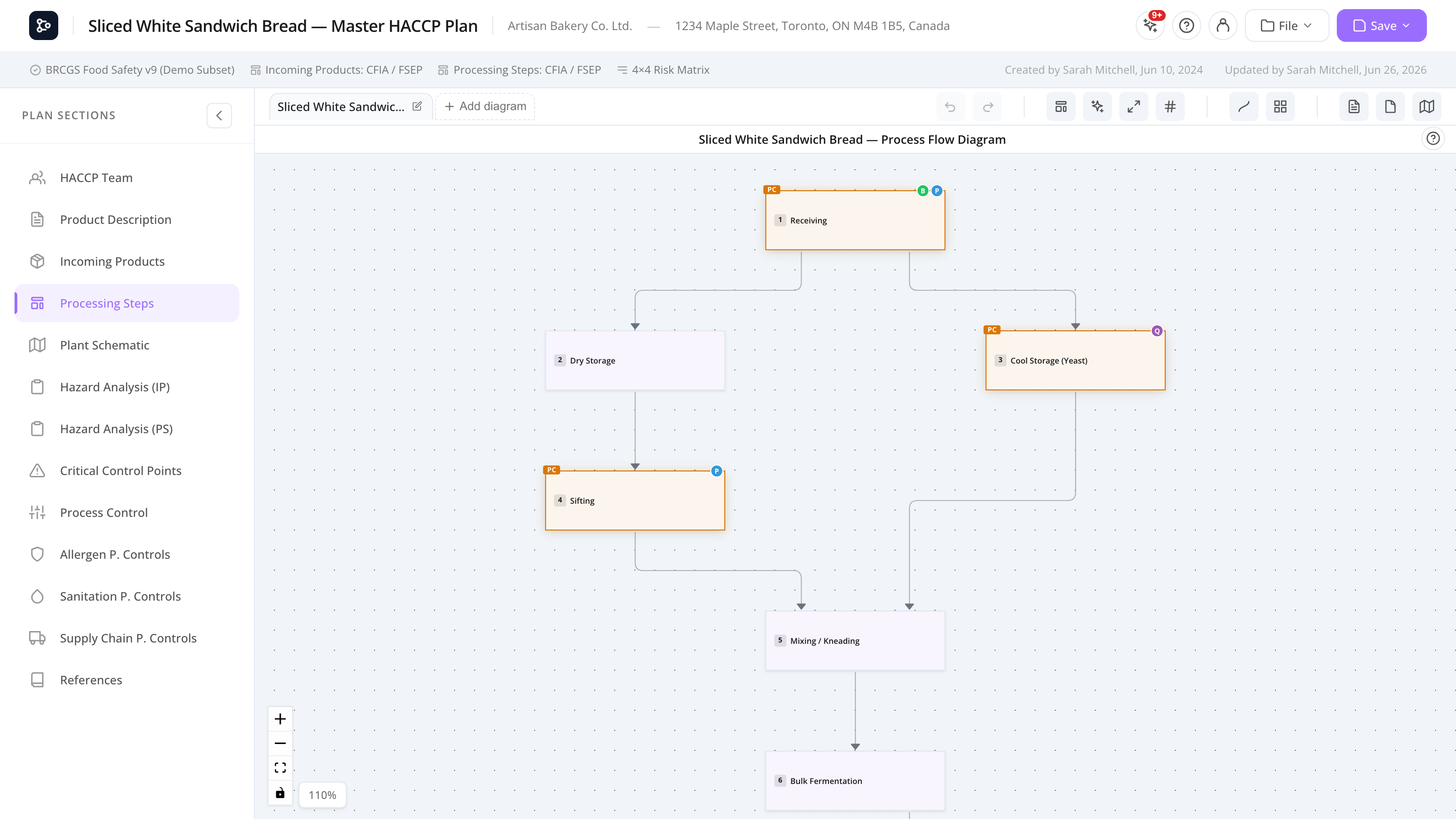
The Processing Steps section is the visual flow diagram of your production process. Each box on the canvas is a step (Receiving, Storage, Mixing, Cooking, Packaging, Shipping, etc.), and arrows between boxes show the order. You can also add label nodes for free-floating text annotations.
A plan can hold several independent diagrams shown as a tab strip above the canvas — for example a general flow plus one diagram per product line. Each tab is its own canvas with its own steps, connections, and saved zoom/pan.
For each step, you can attach hazards — the same way you do on incoming products — and evaluate them with the decision tree wizard. The result feeds the Hazard Analysis (Processing Steps) table.
The editor supports a deep set of conveniences: rich edge styling, orthogonal bend points, edges that fan apart where they overlap, helper-line snapping, copy/paste across diagrams, undo/redo, auto-layout, one-click cleanup, page-view mode, and a minimap.
Common tasks
How to work with multiple diagrams
The tab strip sits above the canvas.
- Click a tab to switch to that diagram. The view restores the zoom and pan you left it at.
- Click Add diagram (the
+tab) to create a new empty diagram and switch to it. - Double-click a tab — or click its pencil icon — to rename it.
- Click the × on a tab to delete that diagram (you’ll be asked to confirm; deletion can’t be undone). You can’t delete the last remaining diagram.
- Drag a tab left or right to reorder.
When the strip overflows, arrow buttons appear at its ends, the mouse wheel scrolls it, and the active tab scrolls into view. Plans created before multiple diagrams existed are automatically wrapped into a single tab when you open them.
Important: Hazard Analysis, the CCP and Process Control grids, Verify Plan, and Print all aggregate across every diagram tab — not just the one you’re looking at. The Hazard Analysis (Processing) table adds a Diagram filter when a plan has more than one diagram.
How to add a step
- Right-click on empty canvas → Add Step.
- A new step is created at the cursor position.
- Double-click the step name to rename it.
How to connect two steps
- Click a step — connection handles appear on all four sides (top, bottom, left, right).
- Drag from a handle to another step’s handle.
- An arrow is created.
You can have connections from any side to any side. Handles for connections an edge already uses stay visible; the rest appear when you select or connect a step.
How to delete a connection
- Click the connection line to select it.
- Press Delete or Backspace.
Or right-click → Delete.
How to add a label to a connection
- Double-click the connection line.
- Type the label.
- Click outside to save.
Labels show as small text on the line. Drag the label to reposition it. Right-click a label for the edge menu.
How overlapping arrows fan apart
When several arrows meet at the same point, the editor fans them into clean, non-crossing lines as you hover the step so each one is easy to pick. While the fan is open:
- Click a fanned line to select it.
- Drag a fanned line to disconnect that end and drop it on another step to reconnect it elsewhere.
How to bend a connection (bend points)
Bends are an explicit action, so an ordinary line never moves by accident.
- Alt+drag anywhere on an edge, or right-click the edge → Add Bend Point.
- Drag a bend point (small circle) to move it; right-click a bend point to remove it.
- Right-click the edge → Straighten Line (Remove Bends) to reset.
Paths route strictly orthogonally (Manhattan, no diagonals) with rounded corners, and near-aligned points auto-snap.
How to slide a connection segment
Grab a straight part of an edge and drag it perpendicular to its direction — a vertical run slides left/right, a horizontal run slides up/down — while the line stays straight. The cursor shows the slide direction on hover.
How to style a connection
Right-click the connection → Edge Style…. The Edge Style modal lets you pick stroke colour, width, dash pattern, marker (arrowhead) start/end, and label position/orientation. The same menu also switches the line shape (Smooth Step, Bezier, Step, Straight).
How to add a label node (free text)
- Right-click on canvas → Add Label.
- Type the text.
Label nodes don’t connect to other nodes — they’re for annotations only (e.g., ”← Sanitation zone”, “GMP zone start”).
How to attach a hazard to a step
- Click a step to select it.
- The Step details panel opens on the right and the hazards dock opens at the bottom.
- In the hazards dock, click + Add hazard.
- Fill in type, hazard description, and risk (severity × probability).
- Click Evaluate to run the Decision tree wizard.
- Choose control type, standard items, justification, and any linked steps.
- Save.
The step’s colour automatically updates based on the highest-priority control type (CCP > PCP > PC > PRP), unless you’ve manually set a colour.
How to use page view
Toggle Page View in the toolbar to constrain the canvas to printable pages. Page Boundaries show the page edges as an overlay so you can lay out the diagram across multiple pages. While either is on, an Add Page Rectangle button appears.
How to auto-layout the diagram
Open the Auto Layout dropdown in the toolbar and pick Vertical, Horizontal, or Fit to Pages. The system rearranges all nodes using a graph layout algorithm. After applying one, Original Flow appears in the same menu to restore your previous positions.
How to reorganize (tidy) the diagram
Click the Reorganize Diagram button (the ✨ sparkles icon). It’s a gentle, one-click cleanup that preserves your layout intent: it adds breathing room between cramped steps, lines up nearly-aligned boxes, straightens connections, and slides edge labels to clear spots. It never re-flows or reorders the diagram, and it’s undoable.
How to copy/paste steps
- Select one or more steps (click + Shift-click, or drag a marquee).
- Ctrl/Cmd + C to copy — or right-click a step → Copy Step.
- Ctrl/Cmd + V to paste, or right-click the canvas → Paste Steps.
Copying takes the whole selection with its connections, attached hazards, evaluations, colour, and size. The clipboard survives switching diagrams, so you can paste steps onto another diagram tab. Pasted hazards get fresh IDs so the analysis isn’t double-counted.
How to undo / redo
Ctrl/Cmd + Z undoes the last action; Ctrl/Cmd + Shift + Z (or Ctrl/Cmd + Y) redoes it. Most actions (add, delete, move, resize, edge changes, bend-point drags) are undoable. Undo/redo is scoped to the diagram tab you’re on — switching tabs starts a fresh history for that tab.
How to print or export the diagram
Use File → Print preview to print or export to PDF. Print includes every non-empty diagram tab. See Print preview.
Screen reference
Toolbar
| Control | What it does |
|---|---|
| Undo / Redo | Steps back/forward through this tab’s history. |
| Auto Layout | Dropdown: Vertical, Horizontal, Fit to Pages, and Original Flow (after a layout is applied). |
| Reorganize Diagram (✨) | Adds spacing, straightens lines, and tidies labels while keeping your layout. |
| Fit View | Zooms to fit the whole diagram. |
| Renumber Steps | Re-assigns step numbers in flow order (asks to confirm). |
| Edge Type | Default line shape for new connections (Smooth Step, Bezier, Step, Straight). |
| Background | Grid style (Grid / Dots / None). |
| Page View | Toggles canvas mode (infinite ↔ paged). |
| Page Boundaries | Shows printable page edges as an overlay. |
| Add Page Rectangle | Adds another print page (only while page view / boundaries are on). |
| Minimap | Toggles the minimap panel. |
A zoom indicator (showing the current zoom %) sits on the canvas itself.
Diagram tabs
| Control | What it does |
|---|---|
| Tab | Click to switch; double-click (or pencil icon) to rename; drag to reorder. |
| × | Deletes that diagram (confirm; can’t undo). Hidden when only one diagram remains. |
| + Add diagram | Creates a new empty diagram and switches to it. |
| End arrows | Appear when the strip overflows; click to scroll. The wheel also scrolls the strip. |
Context menus
| Right-click on… | Options |
|---|---|
| Empty canvas | Add Step, Add Label, Paste Steps (if something is copied), Enable/Disable Helper Lines. |
| A step | Edit Name, Duplicate, Copy Step, Copy Hazards (if any), Paste Hazards (if copied), Node Color, Delete. |
| An edge | Edit Label, Toggle Animation, Edge Style…, Add Bend Point, Straighten Line (if bent), Delete, plus line shape (Smooth Step / Bezier / Step / Straight). |
| A bend point | Right-click removes it. |
Step details panel & hazards dock
Open when a step is selected.
| Area | What it has |
|---|---|
| Step details panel (right) | Step name, number, description, and manual colour override. |
| Hazards dock (bottom) | Add / edit / evaluate hazards on this step. Resizable and collapsible. |
Keyboard shortcuts & mouse
| Key / action | Action |
|---|---|
| Delete / Backspace | Delete selected step/edge. |
| Ctrl/Cmd + Z | Undo. |
| Ctrl/Cmd + Shift + Z / Ctrl/Cmd + Y | Redo. |
| Ctrl/Cmd + C / V | Copy / paste steps. |
| Alt + drag an edge | Add and move a bend point. |
| Mouse wheel | Scroll the canvas up/down. |
| Shift + wheel | Scroll the canvas sideways. |
| Ctrl/Cmd + wheel | Zoom in/out. |
FAQs
Can one plan have more than one flow diagram? Yes. The tab strip above the canvas holds as many diagrams as you need — for example a general flow plus one per product line. Each tab is an independent canvas with its own steps, connections, and zoom/pan. Hazard Analysis, the CCP and Process Control grids, Verify Plan, and Print all gather steps from every diagram, so nothing on an inactive tab is lost.
Does copying a step copy its hazards? Yes. Copying takes the whole selection together with its connections, attached hazards and evaluations, colour, and size. Pasted hazards get new IDs so they aren’t double-counted. Because the clipboard survives tab switches, you can copy on one diagram and paste onto another.
Why does my step automatically change colour after adding a hazard? The Flow Editor auto-colours steps by their highest-priority control type — CCP (red), PCP (orange), PC (yellow), PRP (green). To override, right-click the step → Node Color and pick a colour. To reset, choose Default.
Why do some arrows spread apart when I hover a step? When multiple arrows meet at the same point they fan into clean, non-crossing lines so each is easy to pick. Click a fanned line to select it, or drag it to reconnect that end to a different step.
My line won’t bend when I drag it — it just slides sideways. Dragging a straight edge slides that segment perpendicular while keeping it straight. To add a corner instead, Alt+drag the edge or right-click it → Add Bend Point. Straighten Line (Remove Bends) resets it.
How do I print or export the diagram? Use File → Print preview, which can print or save to PDF and includes every non-empty diagram. Page View + Page Boundaries help you lay out the diagram across pages first. See Print preview.
Why does Verify Plan flag my flow as incomplete? Verify Plan aggregates across all diagrams. Disconnected floating steps and other completeness gaps trigger a warning so you can fix them before approval.