Verify plan
Run a completeness check across all enabled sections to catch missing answers and incomplete data.
What this is for
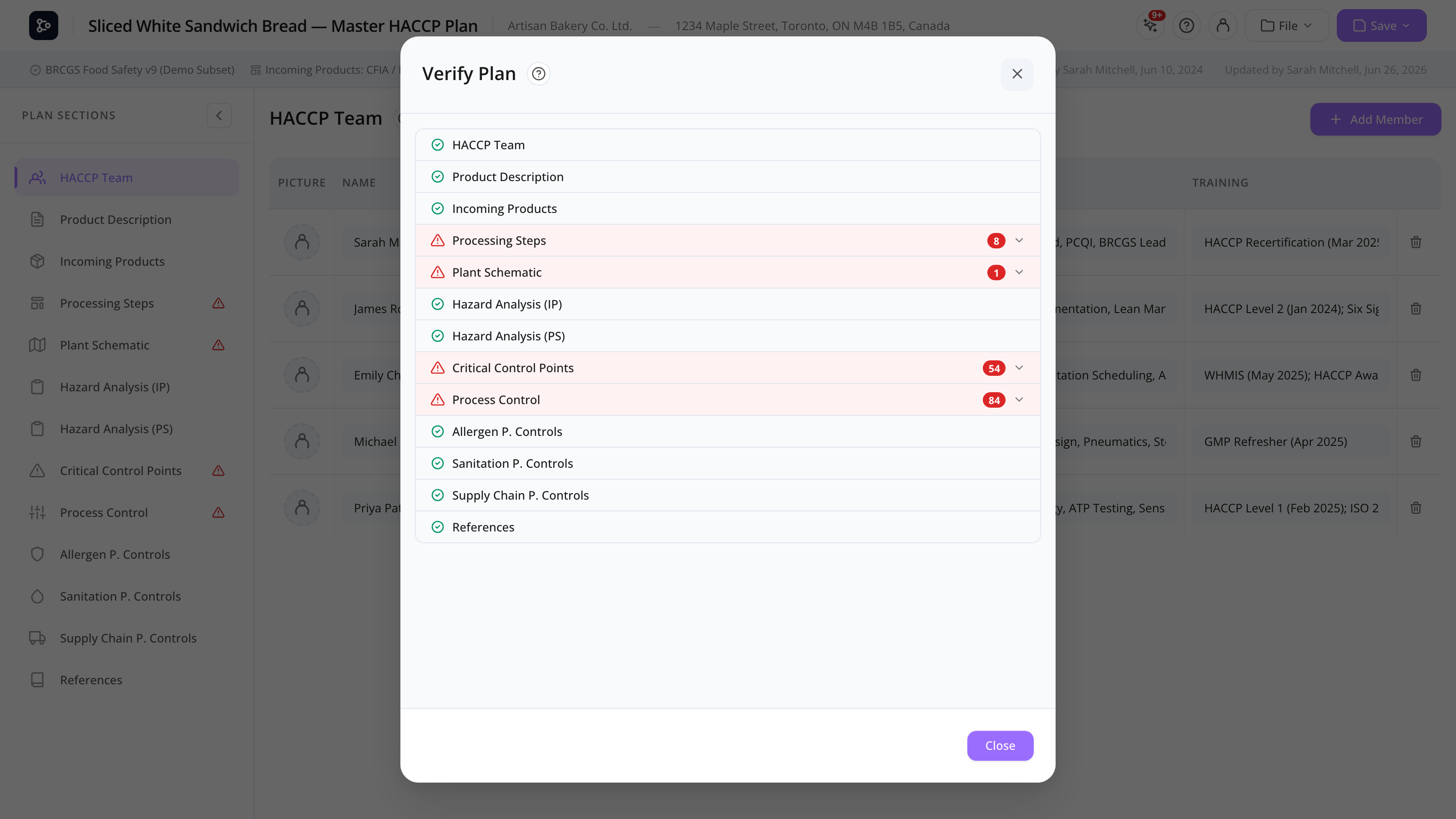
Verify plan is a one-click completeness checker. It scans every enabled section of your plan and reports any sections with missing or incomplete information. The results show as:
- Sidebar warning icons — a small red triangle next to incomplete section names.
- Section header icons — a triangle next to the section title when you open it.
- Verify modal — a list of every section with pass/warn status, clickable to navigate.
Use it before approving or printing a plan to catch obvious gaps before an auditor does.
Common tasks
How to open the Verify modal
Click File → Verify plan. The modal opens.
How to read the results
Each section row shows:
- Pass (green check) — no issues found.
- Warning (yellow triangle) — items are missing. Click to expand details.
The detail list shows specifically what’s missing (e.g., “Question 3: Ingredients — no answer”).
How to fix issues
Click the section name in the modal. You’re navigated to that section, and the section header shows the warning triangle next to the title. Fill in the missing items, and the warning disappears automatically.
You can keep the modal open in another tab if you want to tick items off one by one.
How to dismiss warnings
Warnings clear automatically once the underlying issue is fixed. There’s no “ignore” — the goal is completeness, so the warning persists until you address it (or disable the section in Setup if it’s not applicable).
Screen reference
Verify modal
| Element | Description |
|---|---|
| Section row | Section name + pass/warn icon. Click to navigate. |
| Detail list | (For warnings) list of specific missing items. |
| Close | Dismisses the modal. |
Section warning indicators
| Location | What it looks like |
|---|---|
| Sidebar icons | Small red triangle next to the section name. |
| Section header | Triangle next to the section title when the section is open. |
What’s currently checked
- Product description — every question must have a non-empty answer.
The checks are designed to be conservative — they only flag clearly missing data, not stylistic issues. More checks will be added in future releases (HACCP team must have at least one member, every CCP must have critical limits, etc.).
FAQs
Why doesn’t Verify plan check my CCP grid for missing critical limits? Per-cell completeness checks for CCP and PC grids are planned but not yet implemented. Currently, only Product Description is checked.
Can I add my own checks?
Not from the UI. Custom checks would require a code change (in useSectionWarnings.js). If you have a check you’d like added, contact Datahex.
A section is showing a warning but I think the data is fine. Open the section and look for the triangle icon next to the title — hovering it shows what’s missing. If you genuinely don’t need that data, deleting the missing-question item is the cleaner fix.
Will the print view hide warnings? Yes — warnings are interface-only and don’t show in the print or PDF export.
Does Verify plan check that the flow diagram is connected? Not yet. Currently, only Product Description is checked. Visual review is recommended for the diagram.
If I disable a section in Setup, does that clear its warnings? Yes — only enabled sections are checked.