AI Plan Assistant
Build, edit, and ask questions about your HACCP plan through chat — attach an existing plan or supplier documents, and review every change before it lands.
What this is for
The AI Plan Assistant is a chat-driven alternative to clicking through every section by hand. You describe what you make, paste your team list, attach a supplier spec sheet, or load an existing plan — and the assistant proposes structured changes that you review and apply.
Nothing is changed automatically. The assistant never edits your plan directly: every change it suggests appears as a card in the Pending changes panel, grouped by section, for you to accept or reject. You stay in control of what actually gets written.
The assistant also knows your working plan. Every time you send a message, a snapshot of the current plan goes with it — team, products, flow diagrams, controls, references, and your actual product-description questions (including any custom ones you added). That means it can answer questions about your plan, not just add to it.
It is grounded in MyHaccpPlan’s reference databases — it looks up hazards, pathogens, product categories, and processing-step types instead of inventing them.
Common tasks
How to start a chat
- Open the assistant from the dashboard or the user menu.
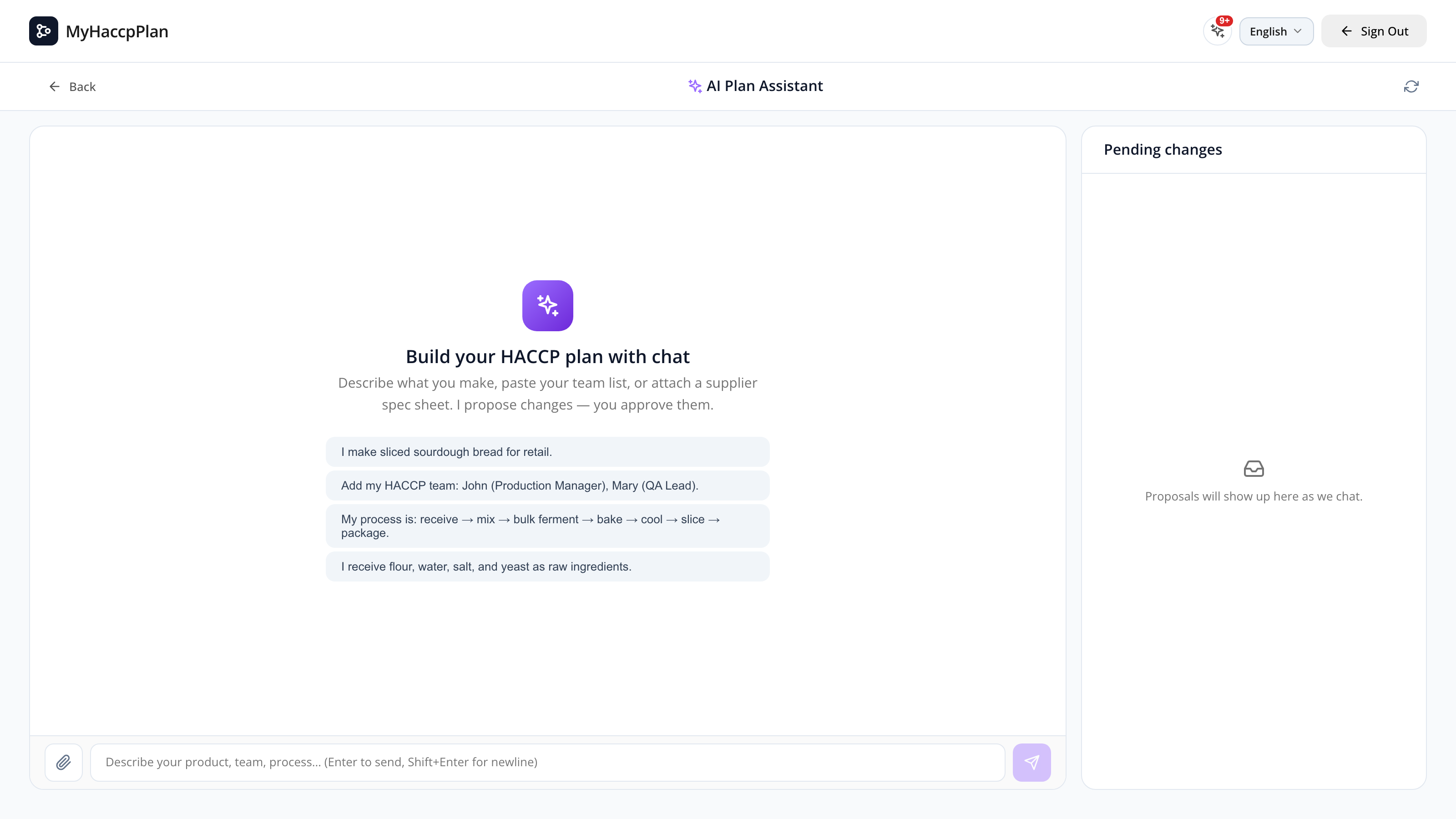
- The empty state shows a few starter prompts you can click to seed the input.
- Type a sentence about your product, team, or process and press Enter to send. Shift+Enter inserts a newline.
The first message creates a fresh draft plan in the background. As you chat, the assistant proposes additions and edits you review on the right.
How to attach a PDF, Word, or text file
- Click the paperclip button next to the input.
- Pick a
.pdf,.docx, or.txtfile (max 8 MB). You can pick several at once. - The file appears as a chip above the input. Click the × on the chip to remove it before sending.
- Type a short message (e.g. “Here’s our team roster — please add them.”) and send.
The text is extracted and given to the assistant as context. Use this for org charts, supplier spec sheets, ingredient lists, or any document the assistant should pull names and details from. If a document is long, it may be shortened before it’s sent — the chip will then show a Truncated badge.
How to load an existing plan and chat with it
- Click the paperclip and pick a plan file (
.hplnor.json) you previously exported from MyHaccpPlan. - If you already have chat activity, you’ll be asked to confirm — loading a plan resets the chat.
- The toolbar shows a plan badge with the loaded plan’s name, and a “Loaded plan: …” event appears in the chat.
- Ask questions like “How many team members do I have?”, “What standard is this plan against?”, or “List my references.”
- Ask for additions or edits like “Add a packaging step after baking” or “Update Maria’s role to QA Lead.” The assistant proposes the change in the Pending panel.
How to work across multiple flow diagrams
The assistant sees every flow diagram tab in your plan, not just the one you’re looking at. You can ask it to add or edit steps on any tab, and a new step lands on the correct diagram. Name the diagram in your request (e.g. “On the Packaging line, add a metal-detection step after sealing”) when you have more than one. See Processing Steps for how diagrams and steps work in the editor.
How to review and apply proposed changes
- Each proposal appears in the Pending changes panel on the right, grouped by section (HACCP team, Incoming products, Processing flow, References, etc.). Each card is named so you can tell at a glance what it targets.
- Read each card. Use the edit button on a card to tweak its fields before applying (for example, fix a typo in a name). Use the dismiss (×) on a single card to reject it, or Reject all to clear everything.
- Click Apply all to commit every pending proposal to your plan. Changes that delete or replace existing content ask for a confirmation first.
- After applying, click Open in editor to jump to the plan editor and continue working in the regular UI.
If you ask for the same thing twice (e.g. re-propose a team member with the same name), applying it updates the existing entry instead of creating a duplicate.
How to undo an applied change
After you Apply, the panel shows an Undo last change button. It restores the plan exactly as it was before that Apply. For plans linked to the cloud, the assistant also saves a restore point of your previous plan before applying, as an extra safety net.
How to reset the chat
The refresh button in the toolbar clears the chat, the pending changes, and any loaded plan. You’ll be asked to confirm if there are pending changes.
Screen reference
Toolbar
| Element | What it does |
|---|---|
| Back to dashboard | Returns to the Dashboard. |
| Plan badge | Shows the name of the loaded plan (only visible after attaching a plan file). |
| Open in editor | Jumps to the plan editor after you’ve applied changes. |
| Reset | Clears the chat, pending changes, and loaded plan. |
Chat panel
| Element | What it does |
|---|---|
| Starter prompts | One-click examples shown when the chat is empty. |
| Paperclip | Opens the file picker for plan files, PDF, Word, or text files. |
| Input | Type your message. Enter sends, Shift+Enter inserts a newline. |
| Send | Sends the message (and any pending file attachments). |
| Attachment chip | Shows a queued PDF/Word/text file. Click × to remove it before sending. |
| Truncated badge | Appears on a chip when a long document was shortened before sending. |
Pending changes panel
| Element | What it does |
|---|---|
| Section group | Cards grouped by destination (Plan info, HACCP team, Incoming products, Processing flow, Hazard analysis, Control sections, References, …). |
| Proposal card | One proposed change, named by its target. |
| Edit | Opens the card’s fields so you can adjust them before applying. |
| Dismiss (×) | Rejects a single proposal. |
| Reject all | Clears every pending proposal. |
| Apply all | Commits every pending proposal to your plan. Removals and full rewrites confirm first. |
| Undo last change | Restores your plan to the state it was in before the last Apply. |
FAQs
Can I attach a document?
Yes. You can attach PDF, Word (.docx), or plain-text (.txt) files up to 8 MB each — the assistant reads their text (an org chart, a supplier spec, an ingredient list, and so on). You can also attach a plan file (.hpln or .json) to chat about an existing plan. Other formats are rejected with a clear message.
Does it change my plan automatically? No. The assistant only proposes changes — they show up as cards in the Pending changes panel. Nothing is written to your plan until you click Apply all (or apply individual cards). You can edit or reject any card first, and undo an Apply afterward.
What can the assistant do? It can add, edit, and remove team members, incoming products, references, and hazards; evaluate hazards (severity and probability, plus the control type from the decision tree); and edit plan information, product answers, and flow steps across any diagram.
Why didn’t it edit my CCP grid (or schematic, or decision tree)? The assistant can’t directly edit CCP/PC grid cells, the plant schematic, or decision trees — those stay human-driven in the regular editor. Note that when the assistant evaluates a hazard, that evaluation feeds the CCP/PC grids automatically, so you usually don’t need it to touch the grid directly. See Critical Control Points and Plant Schematic.
Does it know about all my diagrams? Yes. The plan snapshot sent each turn includes every flow diagram tab, so the assistant can answer about steps on any of them and place new steps on the correct one. See Processing Steps.
Does it know what’s already in my plan? Yes. Every message carries a snapshot of your working plan — team, products, flow, controls, references, and your real product-description questions, including custom ones — so it can answer questions like “how many team members do I have?” or “what references are on this plan?”.
It said it ran out of room and stopped early. What does that mean? On a long request the assistant has a per-turn work limit. If it hits that limit before finishing, it tells you it stopped early — just ask it to continue and it will pick up where it left off.
Why was my long document truncated? Very large documents are shortened before they’re sent so the conversation fits. The chip will show a Truncated badge — try sending a section at a time, or paste the relevant portion as text.
Is my chat private? Yes. Your chat, your draft plan, and your undo history are private to your account and kept in your own browser. Clicking Reset, or clearing your browser data, removes them.
Loading a plan reset my chat — is that expected? Yes. Loading an existing plan replaces the working draft, so the previous conversation no longer applies. Confirm before loading if you have proposals you wanted to keep.