Getting started
Sign in, navigate the main layout, switch language, and find your way around MyHaccpPlan.
What this is for
This page covers the basic mechanics of MyHaccpPlan — the parts that aren’t tied to any single feature but that you’ll use every day: how to sign in, how the main layout is organized, how to switch language, and how to sign out.
If you’re brand-new to HACCP, this is also a good place to start. Every other article in this help center assumes you can already log in and find your way to the Dashboard.
Common tasks
How to sign in
- Go to www.myhaccpplan.com.
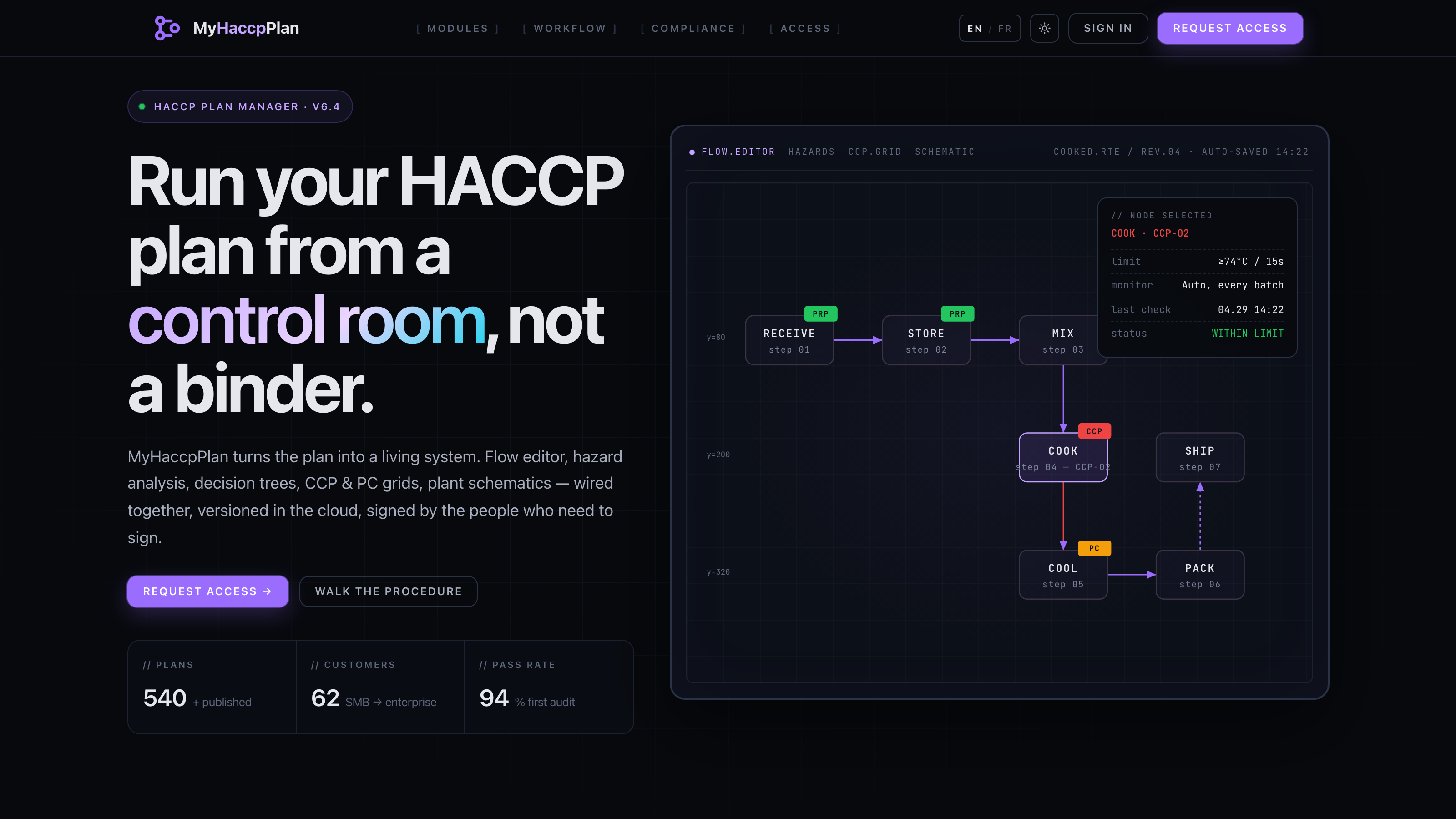
- From the landing page, click Sign in in the top-right.
- Enter your email and password.
- Click Sign in. You’re taken to the Dashboard.
If you don’t have an account yet, ask a team admin to create one for you or register your company for an admin to review.
Sessions last 24 hours. After that, you’ll be asked to sign in again. Your work is auto-saved every 30 seconds, so nothing is lost.
How to navigate the main layout
Once you open a plan (/plan), the screen is divided into three areas:
- Header — plan name, company, version, the File menu, and the User menu.
- Sidebar (left) — the list of sections in your plan. Click any to switch. Click the chevron at the top to collapse it to icons.
- Main area — the active section.
The sidebar order matches the order you set during the Setup wizard and can be changed later.
How to switch language
MyHaccpPlan supports English (Canadian and American) and French (Quebec).
- From the landing page, login page, or dashboard header, click the language switcher (flag icon).
- Pick your language.
The interface reloads in the new language. Your preference is saved per browser.
How to sign out
- In the header, click your name (top-right) to open the User menu.
- Click Logout.
You’re returned to the login page. Any unsaved changes are kept in your browser via auto-save and will reappear when you sign back in on the same device.
How to get to the Admin panel (admins only)
If you have the admin or super_admin role, the User menu includes an Admin link. Click it to manage users, customers, and reference data. Regular users won’t see this link.
Screen reference
Landing page
| Element | What it does |
|---|---|
| Sign in (top-right) | Goes to the login page. |
| Get started (hero) | Same as Sign in. |
| Features | Anchored to the features grid below. |
| How it works | 8-step walkthrough of the typical plan-creation flow. |
| Language switcher | Switch between English (CA/US) and French (QC). |
Login page
| Element | What it does |
|---|---|
| Email + password | Your sign-in credentials. |
| Sign in | Submits the form. |
| Forgot password | Opens the password reset flow. |
| Register company | Opens the registration form. |
| Language switcher (top-right) | Switch language without signing in. |
| Home (top-left) | Returns to the landing page. |
Header (inside a plan)
| Element | What it does |
|---|---|
| Plan name + company + version | Plan metadata. Click to edit (if your role allows). |
| File menu | New, Open, Save, Export, Import, Cloud actions, Verify Plan. |
| Save indicator | Shows last save time. |
| User menu | Dashboard, Admin (if available), Logout. |
FAQs
I forgot my password — what do I do? On the login page, click Forgot password, enter your email, and complete the CAPTCHA. You’ll get a reset link by email. See Reset password.
Why am I being asked to sign in again? Sessions last 24 hours. After that, your session expires for security and you need to sign in again. Auto-save keeps your in-progress plan safe.
Do I lose my work if I close the browser? No. The plan you’re editing is auto-saved to your browser every 30 seconds, and it’s restored when you reopen the app from the same device. The Dashboard also shows a “Continue editing” card if there’s an unsaved plan.
Can I have multiple plans at the same time? Yes. Use the Cloud Storage browser to save and switch between plans. See Cloud Storage.
What’s the difference between admin, user, and super_admin?
- user — can edit plans they have access to.
- admin — can also manage their company’s users, customers, and library content, and approve plans.
- super_admin — Datahex staff only. Has access to global libraries, reference data, the Bucket Explorer, and licensing.