Incoming Products
Organize raw materials, ingredients, and packaging into categories and groups, then identify hazards for each.
What this is for
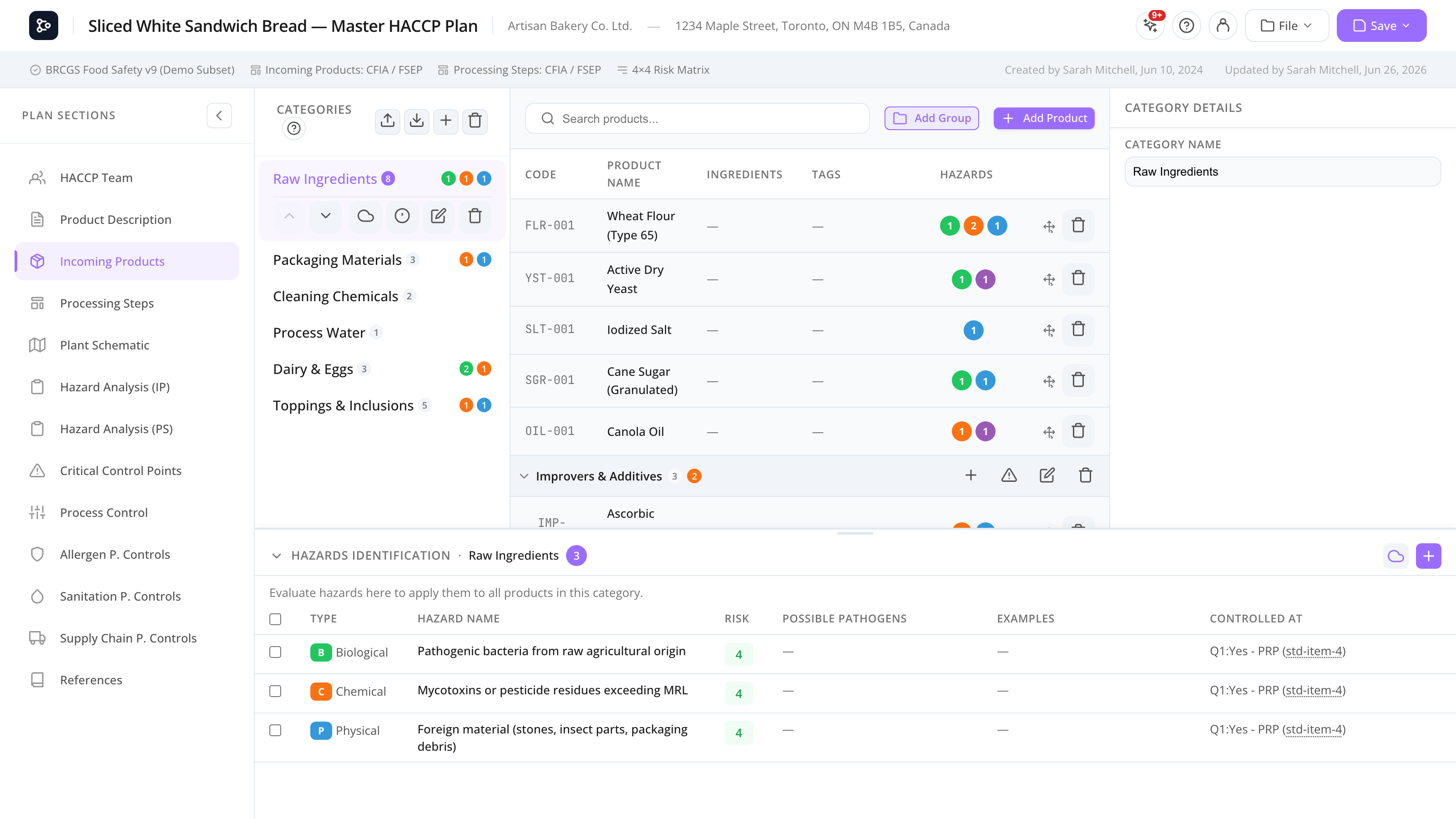
The Incoming Products section is where you describe everything that comes into your plant: raw ingredients, packaging materials, processing aids, etc. It’s organized into a three-level tree:
- Categories — top-level buckets (e.g., Raw Ingredients, Packaging, Cleaning Chemicals).
- Groups (optional) — sub-buckets within a category that share default hazards (e.g., Dairy, Cereals).
- Products — individual items with a name, code, description, and tags.
For each product (or group, or category) you can define hazards — biological (B), chemical (C), physical (P), metallic (M), radiological (R), quality (Q), or your own custom types. You can type hazards by hand or pull them from the Online Hazards picker, then evaluate each one with the Decision Tree Wizard to determine the control type (PRP, CCP, PC, or PCP).
The whole section can also be exported to and imported from Excel — handy for building your product list in a spreadsheet first, or for bulk-loading products from an existing inventory file.
Common tasks
How to add a category
- In the left sidebar, click + Add category.
- Type the name and (optionally) a description.
- Save.
The category appears as a row in the sidebar. Click it to open its detail panel.
How to add a product
- Click the category in the sidebar.
- In the product list (right panel), click + Add product.
- Fill in:
- Name
- Code (your internal SKU/code)
- Description
- Tags (comma-separated; used for search and filtering)
- The product appears in the list.
How to add a hazard to a product
- Open the product (click the row to expand its detail).
- In the Hazards section, click + Add hazard.
- Fill in:
- Type (B / C / P / M / R / Q or custom)
- Hazard description (e.g., Salmonella spp.)
- Risk — click the matrix picker to select severity × probability.
- Click Add hazard to save and close, or Add & continue to keep adding.
How to evaluate a hazard with the decision tree
- After adding a hazard, click the Evaluate button.
- The Decision Tree Wizard opens.
- Answer each question (Yes / No / custom answers depending on the tree).
- The tree concludes with a control type — PRP, CCP, PC, or PCP.
- Pick the Standard items — the prerequisite-program codes (e.g., A.1.1.1) that justify the control (multi-select from your selected standards). Hover any code to read the full program text in a tooltip without leaving the wizard.
- (Optional) Type a Justification.
- (For processing-related hazards) Pick the Processing steps where the hazard is controlled.
- (For PCP conclusions) Pick the PCP controls that apply.
- Click Save.
The hazard now shows its control type as a coloured pill, with the standard items, justification, and steps inside.
How to use the Online Hazards browser
Instead of typing every hazard, you can pull them from the central hazard reference database.
- On a product (or category, or group), click Online hazards.
- The browser shows all hazards from the matching reference category, organized by hazard type.
- Use search and the type filter to narrow down.
- Tick the hazards you want.
- Click Add selected.
Already-existing hazards are pre-ticked so you don’t add duplicates. Added hazards become local copies that you then evaluate through the decision tree like any other. See Online Hazards.
How to manage hazards at the category level
Setting hazards on the category itself lets you cascade them to every product underneath — both ungrouped products and products inside groups.
- Open a category.
- In the Category hazards panel, add or edit hazards as you would on a product.
- Adding a category hazard cascades it to every product in the category automatically.
- When you re-evaluate an existing category hazard, you’re asked: “Apply this evaluation to all products in the category?”
- Override All — push this evaluation onto every product, replacing any per-product evaluation.
- Keep Existing — leave each product’s own evaluation in place.
The prompt only governs the evaluation. Descriptive fields (name, type, pathogens, examples) always follow the category hazard, so editing them stays in sync everywhere.
Each cascaded hazard keeps a stable internal link back to its category (or group) hazard, so the connection survives even after you rename the hazard — the matching product copies are found by that link, not by the text. This saves a lot of typing when products in a category share the same hazard profile.
How to use groups
Groups are optional sub-categories that share default hazards.
- Inside a category, click + Add group.
- Name the group.
- Drag products into the group.
- Add hazards on the group; they cascade to its products with the same override/add prompt as categories.
How to delete a category, group, or product
Hover or open the item, then click the trash icon. Deleting a category also deletes everything inside it. Confirm carefully.
How to delete all categories at once
Next to the + in the category sidebar header, a red trash icon deletes every category — products, groups, hazards, and their evaluations included.
- Click the red trash icon (it’s disabled when there are no categories).
- A warning dialog states exactly how many categories and products will be removed.
- Type CONFIRM in the text box — the delete button stays disabled until you do.
- Click Delete all categories.
This cannot be undone, which is why the typed confirmation is required. Export to Excel or save to the cloud first if you might want the data back.
How to export to Excel
- In the category sidebar header, click the export icon (arrow pointing up).
- An Excel workbook downloads, named after your company and plan.
The workbook contains a Summary sheet (counts per category), an All Products sheet (every product and hazard as one flat table), and one sheet per category. Hazard evaluations (risk, decision-tree answers, control types, standard items) are included for reference.
How to import from Excel
- In the category sidebar header, click the import icon (arrow pointing down).
- The import window opens. Drag and drop your Excel file onto the large drop zone, or click Browse Files.
- The window shows what it found before anything is touched:
- Detected columns — green chips for recognized columns, greyed-out (struck-through) chips for columns that will be ignored;
- a preview table of your first rows, exactly as they’ll be imported;
- a summary line — how many categories, groups, products, and hazards were detected.
- If something looks wrong (e.g., a warning that no Product Name column was found), click Change file, fix your headers in Excel, and re-drop the file.
- Click Import. The categories are added to your existing data (nothing is replaced), and a confirmation appears.
Not sure how to lay out your file? Click Download template in the import window — it downloads an example workbook with the expected column headers (bold, white-on-black) and a few sample rows showing products, a group, and multiple hazards per product.
Rules worth knowing:
- Column order doesn’t matter — columns are matched by header name, in English or French (e.g., Product Name / Nom du produit).
- A Categories column is required; rows without a category are skipped.
- One row = one product, or one product-hazard pair. Repeat the product’s name/code on several rows to give it several hazards.
- Group, Code, Description, Ingredients, Tags, and hazard columns (Type, Hazard Name, Possible Pathogens, Examples, Severity, Probability, Justification) are all optional. Severity and probability must be numbers.
- Decision-tree evaluations are not imported — evaluate hazards in the app after importing.
Screen reference
Sidebar (left)
| Element | What it is |
|---|---|
| Category list | All your categories. Click to open. |
| Export icon (arrow up) | Downloads the section as an Excel workbook. |
| Import icon (arrow down) | Opens the Excel import window (drag & drop, column preview, template). |
| + Add category | Adds a blank category. |
| Red trash icon | Deletes all categories (typed-CONFIRM dialog; disabled when empty). |
| Search | Filters across all categories and products by name, code, or tags. |
Detail panel (right)
| Tab | Description |
|---|---|
| Products | The list of products in this category (or group). |
| Category hazards | Hazards defined at the category/group level. |
| Decision tree editor | Edit the in-plan copy of the active decision tree (advanced). |
Product row
| Column | Description |
|---|---|
| Name | Product name. |
| Code | Internal SKU. |
| Description | Free-form. |
| Tags | Searchable labels. |
| Actions | Edit / delete. |
Hazard card
| Element | Description |
|---|---|
| Type pill | B / C / P / M / R / Q (custom types coloured by config). |
| Hazard text | The hazard description. |
| Risk pill | Severity × probability score from the matrix. |
| Control type pills | PRP / CCP / PC / PCP — expandable to show standard items, justification, processing steps. |
| Standard-item codes | Prerequisite-program codes (e.g., A.1.1.1). Hover one to read the full program text in a tooltip — bullet lists render line by line — without opening the standard. The same hover works wherever a code appears, including the Hazard Analysis (danger) grid. |
| Evaluate | Opens the decision tree wizard. |
| Edit / delete | Pencil / trash icons. |
FAQs
What’s the difference between B, C, P, M, R, and Q?
- B — Biological (microbiological hazards: pathogens, parasites)
- C — Chemical (allergens, mycotoxins, residues, contaminants)
- P — Physical (foreign material like glass, wood, plastic)
- M — Metallic (a sub-type of physical, separated for clarity)
- R — Radiological (rare; e.g., gamma radiation in nuts)
- Q — Quality (non-safety quality issues, used by some standards)
You can also define custom types from the Setup wizard or via the active decision tree.
Why are some products greyed out? The product is in a group, and you’re viewing the category — open the group to see its products as enabled rows.
Can I copy a product to a different category? Drag and drop the row from one category to another in the sidebar. Hazards travel with it.
Why doesn’t a hazard appear in the Hazard Analysis (Incoming) table? A hazard only appears once it has a control type — i.e., it’s been evaluated through the decision tree. Hazards still in draft (without an evaluation) stay on the product but don’t show in the table.
What’s the difference between “Online hazards” and the local list? Online hazards come from the central reference database (managed by Datahex super admins). Once you add them to a product, they become local copies in your plan and are no longer linked to the reference. Updates to the reference don’t propagate retroactively.
Should I evaluate at the category level or the product level? Use category-level when products are very similar (cascade with override). Use product-level when each product has unique hazards. You can mix both — category-level handles common hazards, product-level adds specifics.
How do I see what a program code like A.1.1.1 means? Hover the code wherever it appears — on a hazard card, in the decision tree wizard, or in the Hazard Analysis (danger) grid. A tooltip shows the program’s code, name, and full text, with bullet lists broken out line by line. You don’t need to open the standard.
I renamed a category and my product hazards disappeared — what happened? They didn’t. Category (and group) hazards cascade to every product through a stable internal link, not by matching text, so renaming the category — or even renaming the hazard itself — keeps the connection intact. If a hazard looks missing, it’s almost always because you’re viewing the category while the product sits inside a group (open the group), or because the hazard hasn’t been evaluated yet and so doesn’t show in the Hazard Analysis table.
Why does some program text now read line by line instead of one long paragraph? Some imported programs stored their bullet lists as run-on text. The hover tooltip and program views now break each bullet onto its own line for readability. This is display-only — the stored content is unchanged.
Does my Excel file have to match the exported layout exactly? No. The import reads one sheet (the All Products sheet if present, otherwise the first one), matches columns by header name in any order, in English or French, and simply ignores columns it doesn’t recognize — the import window shows you exactly which ones. Only a Categories column is mandatory. The easiest starting point is Download template inside the import window.
I imported a file and my products have no names. Your product-name column header wasn’t recognized (it must be Product Name or Nom du produit). The import window warns about this before you import — check the detected-columns chips, rename the header in Excel, and import again.