Approval flow
Mark a plan as formally approved by an admin, with password verification.
What this is for
Approval is a formal step that locks the plan as the official, audited version. Approval is recorded in the plan’s audit trail (approved by / approved at) and is shown on the cover page of the printed plan.
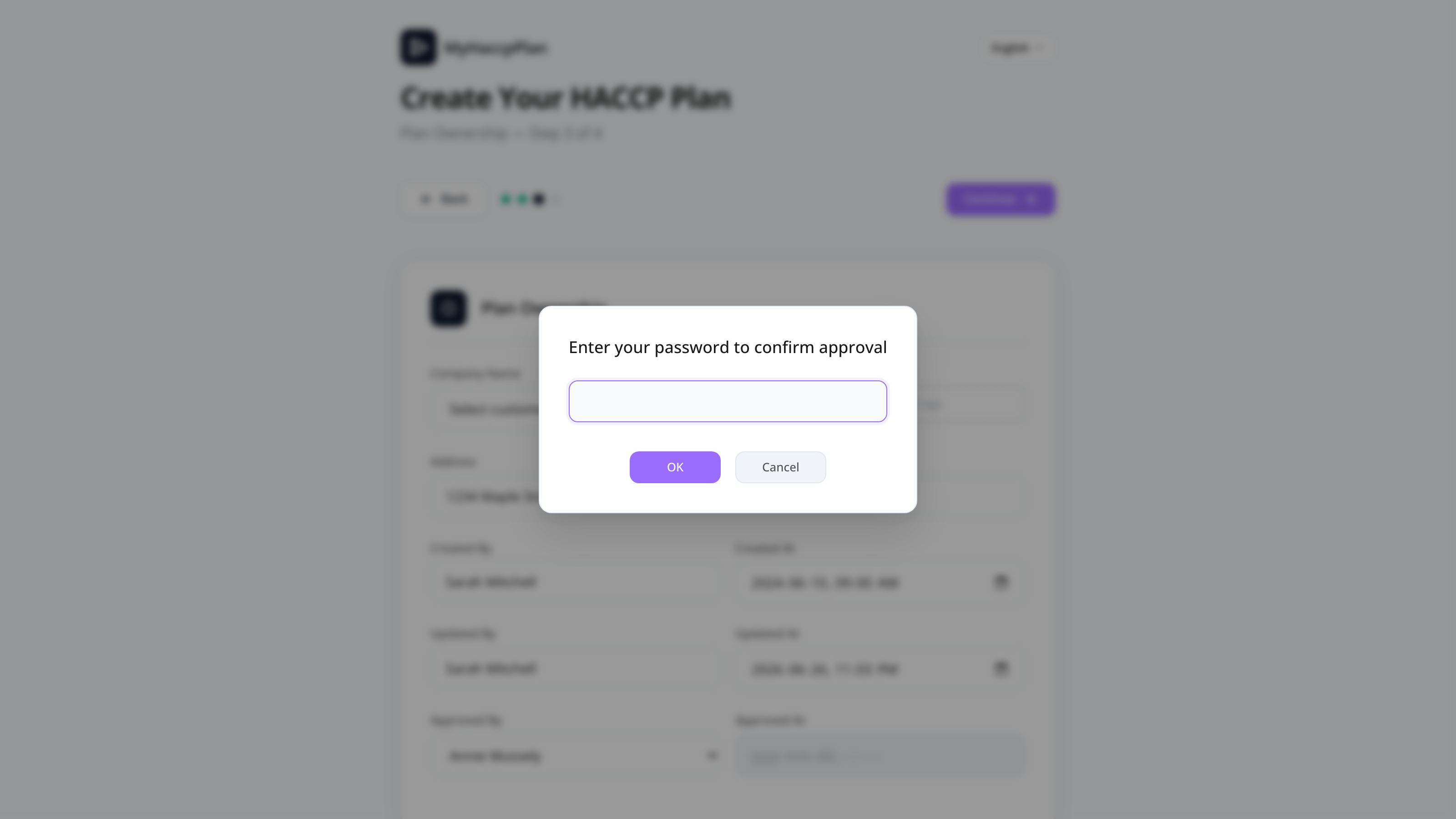
Only admins and super admins can approve plans. The flow requires the approver to confirm with their password — preventing someone else from approving on their behalf.
Approval is revocable: an admin can cancel their own approval (or any approval) and re-approve a different version after edits.
Common tasks
How to approve a plan
- (As an admin) open the plan.
- From the audit trail / approval area in the header or print cover, click Approve plan.
- The approval modal opens.
- Pick the Approver from the admin dropdown (typically yourself).
- Enter your password.
- Click Approve.
The plan is marked approved. The cover page now shows “Approved by: <your name>” with the date.
How to cancel an approval
- From the approval area, click Cancel approval.
- Confirm.
The approval is removed. The plan is back to its unapproved state. Any subsequent edits no longer have an “approval is stale” indicator.
When should I approve?
Typically:
- After the Verify plan checks pass.
- After internal review and signature requests have been completed.
- Before sharing with an auditor or distributing to a team.
After approval, edits are still possible — but the audit trail shows the plan was modified after approval (the “Updated at” timestamp moves past “Approved at”).
Who can see approval status?
Anyone who can view the plan. The approval state is shown on:
- The plan’s cover page in Print preview.
- The cloud browser (an icon next to the plan).
- The header inside the editor.
Screen reference
Approval modal
| Field | Description |
|---|---|
| Approver dropdown | List of admins from the customer. |
| Password | The approver’s account password. |
| Approve | Submits the approval. |
| Cancel | Closes without approving. |
Audit trail row (header / cover)
| Element | When shown |
|---|---|
| Approved by + date | When approved. |
| Cancel approval | If currently approved (admin only). |
| Approve plan | If not yet approved (admin only). |
FAQs
Why does approval need a password? To confirm the approver’s identity. The session cookie alone isn’t strong enough for a formal approval signature — re-entering the password is a deliberate, attested action.
Can a non-admin approve a plan? No. Only users with the admin or super_admin role appear in the approver dropdown. Regular users can request approval from an admin.
The plan shows “Approved” but the date is older than the last edit. Is this a problem? It means edits were made after approval. The cover-page timestamp shows when approval was given, and the “Updated at” timestamp shows the last edit. Re-approve to bring them back into sync.
Can I undo an approval cancellation? Re-approve the plan. There’s no separate “undo” button.
Does cloud save record approval? Yes — every save snapshot in the version history records the approval state at that save. Restoring an old version restores its approval state too.
Is approval the same as a signature? No. Approval is an internal mark by an admin in your customer organization. Signatures (Signature & review) are a separate flow for getting external reviewers’ signatures on a frozen snapshot of the plan.