Critical Control Points
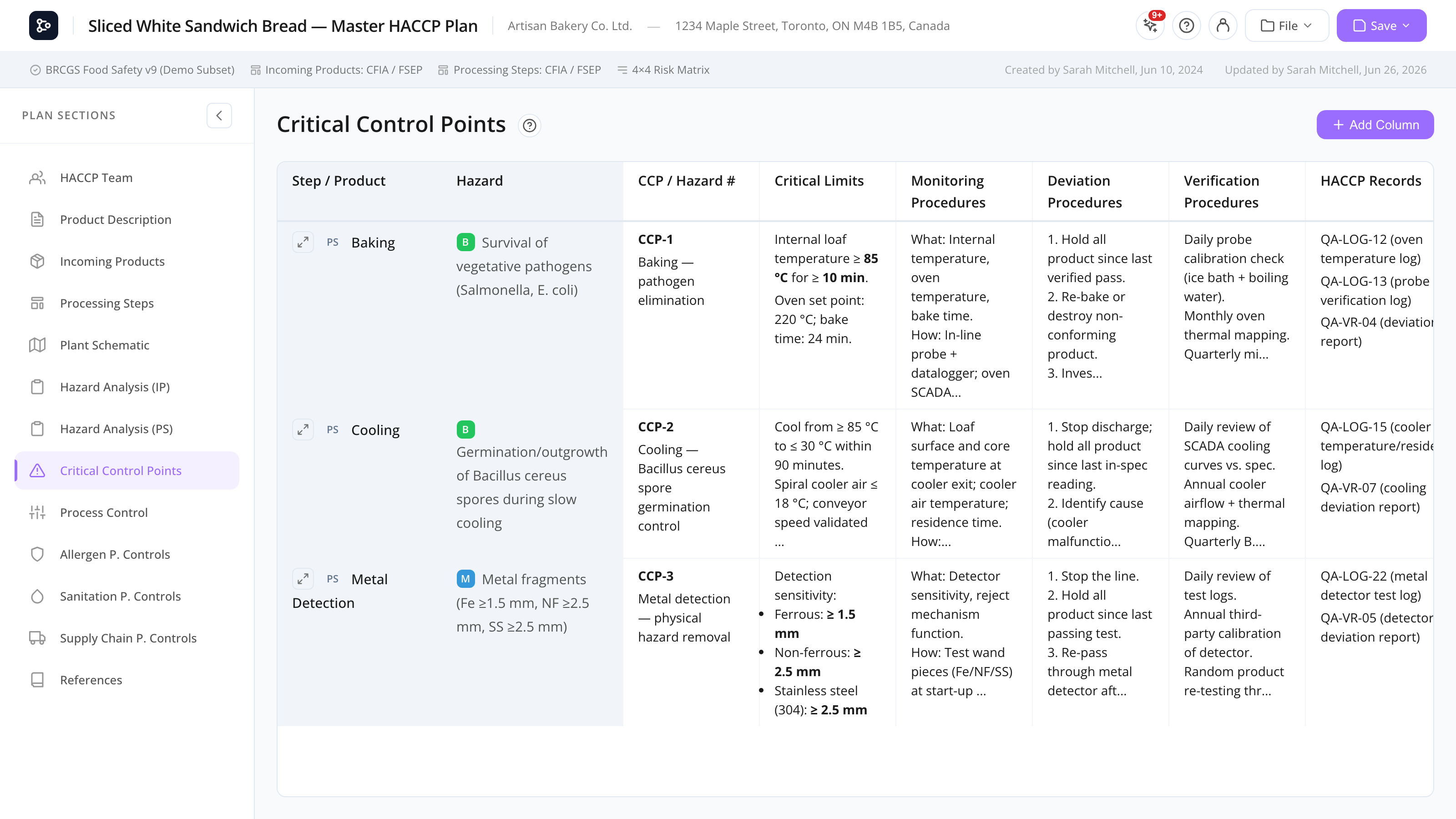
A spreadsheet-style grid for documenting each Critical Control Point with critical limits, monitoring, corrective actions, and verification.
What this is for
The Critical Control Points section is a structured grid for documenting each CCP in your plan. Each row is a hazard that was evaluated as a CCP in your hazard analysis; the columns describe how that CCP is controlled — Critical Limits, Monitoring, Corrective Actions, Verification, Records, and any custom columns you add.
Rows are auto-populated from your hazard-analysis evaluations. You don’t create them by hand — when a hazard is evaluated as CCP in Hazard Analysis (Incoming Products) or Hazard Analysis (Processing Steps), it appears here automatically. The first two columns (Step / Product and Hazard) are locked because they come from the analysis; every other column is yours to add, rename, reorder, or delete.
Evaluations are gathered from every flow diagram tab, not just the one you’re currently viewing. If your plan has more than one diagram (see Processing Steps), each row shows which diagram its step belongs to, so steps with the same name on different diagrams stay distinct.
Cell content is rich text (Tiptap editor), so you can format procedures, lists, and tables inside each cell.
Common tasks
How to add a CCP row
You don’t add CCP rows directly. A row appears automatically when you evaluate a hazard as CCP in Hazard Analysis (Incoming Products) or Hazard Analysis (Processing Steps). Each hazard evaluated as CCP becomes one row.
To make a row appear: open the hazard, run the decision tree, and reach a CCP conclusion. To make a row disappear: re-evaluate that hazard to a different control type (PRP, PC, etc.).
Rows stay synced with their source hazard. If you rename a step or change a hazard’s name, the row’s locked columns update automatically.
How to fill in a cell
- Click a cell to open the editor.
- Use the rich-text toolbar for headings, bold/italic, lists, and tables.
- Click Save (or Cancel to discard).
For long monitoring procedures or tables, use the full-screen view (below).
How to add a custom column
- Click Add Column in the top-right of the grid.
- A new column appears at the end of the row. Double-click its header to rename it (e.g., “Monitoring frequency”).
The new column is added to all rows.
How to rename, move, or delete a column
Double-click a column header to rename it, or click the more (…) button on the header for a menu with Rename, Move Left, Move Right, and Delete. The locked columns (Step / Product and Hazard) have no menu and cannot be renamed, moved, or deleted.
How to expand a row to full screen
Click the expand icon at the left of any row. The expanded view shows every column for that one CCP with more room to write, and a toggle between a grid layout and a horizontal (stacked) layout. Click Back to Grid to return.
How to print the CCP grid
Open Print preview & export. The CCP grid prints as a full table with all evaluation detail, automatically rotated to landscape so the wider tables fit on the page.
Screen reference
Columns
| Column | Locked | Description |
|---|---|---|
| Step / Product | Yes | The source step or product. Shows an IP (incoming product) or PS (processing step) badge. When the plan has more than one diagram, the diagram title is shown in parentheses. |
| Hazard | Yes | The hazard name, with its type pill (B / C / P). |
| Critical Limits | No | The measurable threshold (e.g., temp ≥ 72°C for ≥ 15s). |
| Monitoring | No | What is monitored, how, by whom, how often. |
| Corrective Actions | No | What to do if a critical limit is breached. |
| Verification | No | Procedures to confirm the CCP is functioning. |
| Records | No | Where the data is logged. |
The non-locked columns shown above are starting defaults — you can add, rename, reorder, or delete any of them.
Default column headers follow your interface language automatically — switch between English and French and the standard headers (Critical Limits, Monitoring Procedures, …) switch with you, including in existing plans, the print/PDF export, and the Verify Plan report. Columns you renamed yourself keep the exact name you typed.
Toolbar
| Control | What it does |
|---|---|
| Add Column | Adds a custom column at the end. |
| Column more (…) menu | Rename, Move Left, Move Right, or Delete that column. |
| Row expand icon | Opens the full-screen single-row view. |
Row expanded view
| Element | Description |
|---|---|
| Back to Grid | Returns to the grid. |
| Source / hazard header | The step/product (with IP/PS badge) and hazard for this row. |
| Grid / Horizontal toggle | Switches between a grid layout and a stacked layout. |
| Editors | One full-size Tiptap editor per column; edits save as you type. |
FAQs
Where do these rows come from? They’re pulled from your hazard analysis. Any hazard evaluated as CCP — whether on an incoming product or a processing step — becomes a row here automatically. You can’t add rows by hand.
Why do I see steps from another diagram? The grid aggregates CCP evaluations from every flow diagram tab, not just the active one, so nothing is hidden when you switch tabs. When a plan has more than one diagram, each row’s Step / Product cell shows the diagram title in parentheses to keep same-named steps distinct. See Processing Steps for how diagram tabs work.
Why are Step / Product and Hazard locked? They’re derived from the hazard analysis. Editing them here would break the link to the underlying hazard. To change them, edit the step or hazard in Hazard Analysis (Incoming Products) or Hazard Analysis (Processing Steps).
A hazard I evaluated as CCP isn’t showing — why? Confirm the evaluation reached a CCP conclusion and was saved. Check whether the hazard might have been evaluated on a diagram tab you’re not looking at — the grid shows all tabs, so it should still appear with the diagram name in parentheses.
Can the same hazard appear twice? Yes. If the same hazard is on two different products or steps (or the same step re-used on two diagrams) and each evaluates as CCP, you’ll see two rows. They share the hazard name but are independent — you can fill in different limits and monitoring on each.
Can I add my own columns? Yes. Click Add Column, then double-click the header to name it. You can also reorder columns (Move Left / Move Right) and delete the ones you added. Only the two locked columns can’t be changed.
Can I import CCP data from Excel? Not directly. The grid is in-app only. You can copy-paste cell content from Excel into the rich-text editor.